The steps below show how to use the Advanced search option to look for a Vendor SDS from the full Chemwatch database collection by using a Vendor Name search.
Steps to Search for Material by Vendor Name
- Press the Home module button.
- Press the Advanced tab from the Search Panel.
- Click the Full button from the search panel to set the database look-up path to the full Chemwatch collection.
- Click the Vendor SDS button to set the type of document.
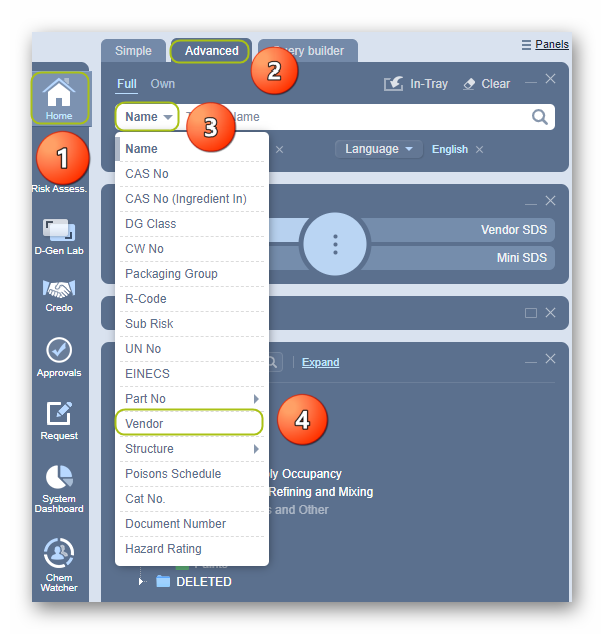
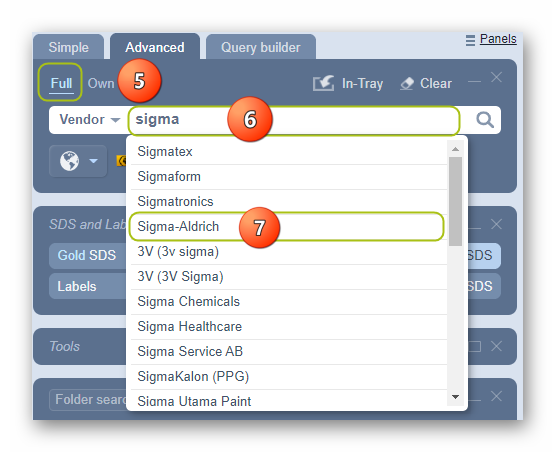
5. Set the search path by clicking the “Full” or Own” option. In this example, the Full option is used.
6. In the Search Panel, type the name of the Vendor in the vendor text field.
7. A list of available vendor group names (records) is displayed to choose from the list. You may use the vertical scrollbar to navigate through the list until you can identify the desired vendor group name. Select the applicable vendor.
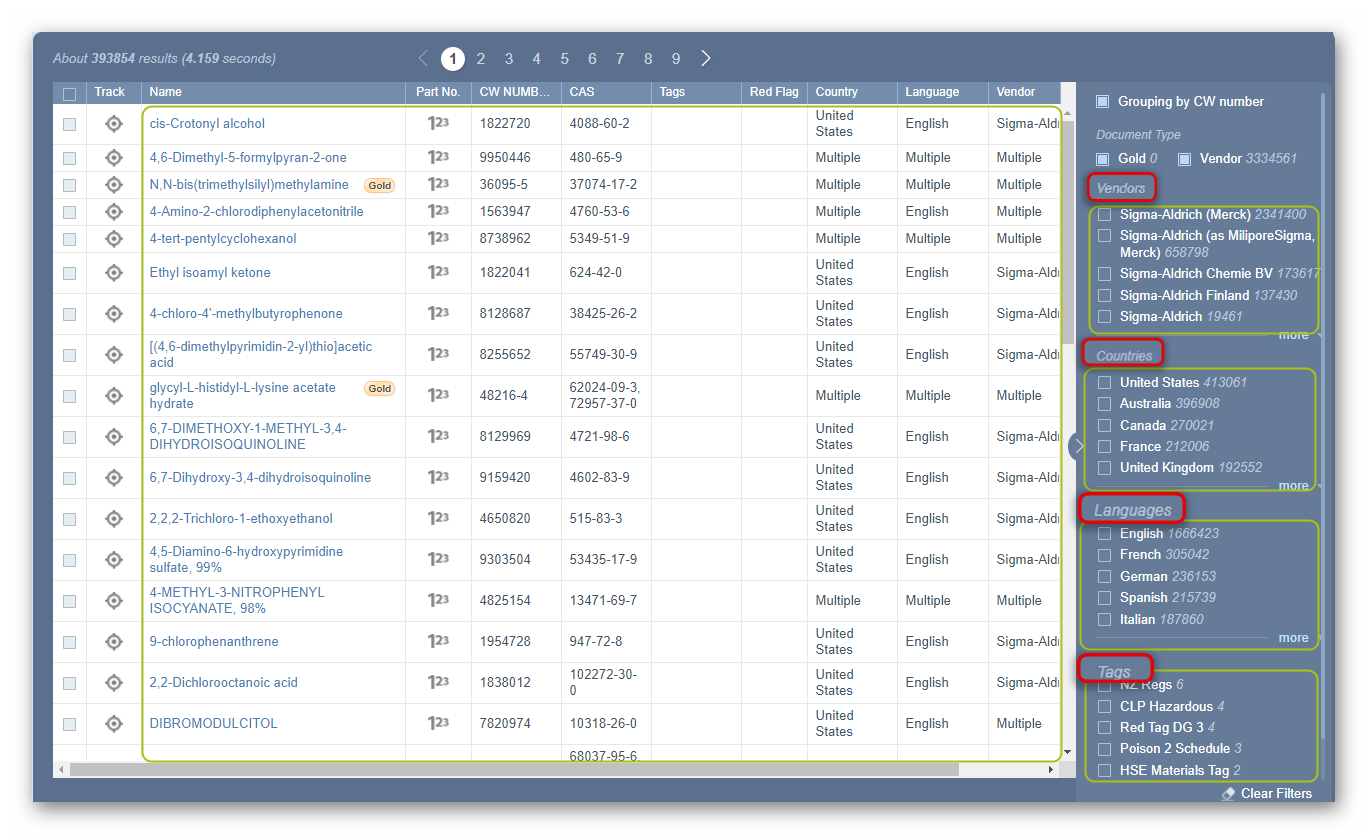
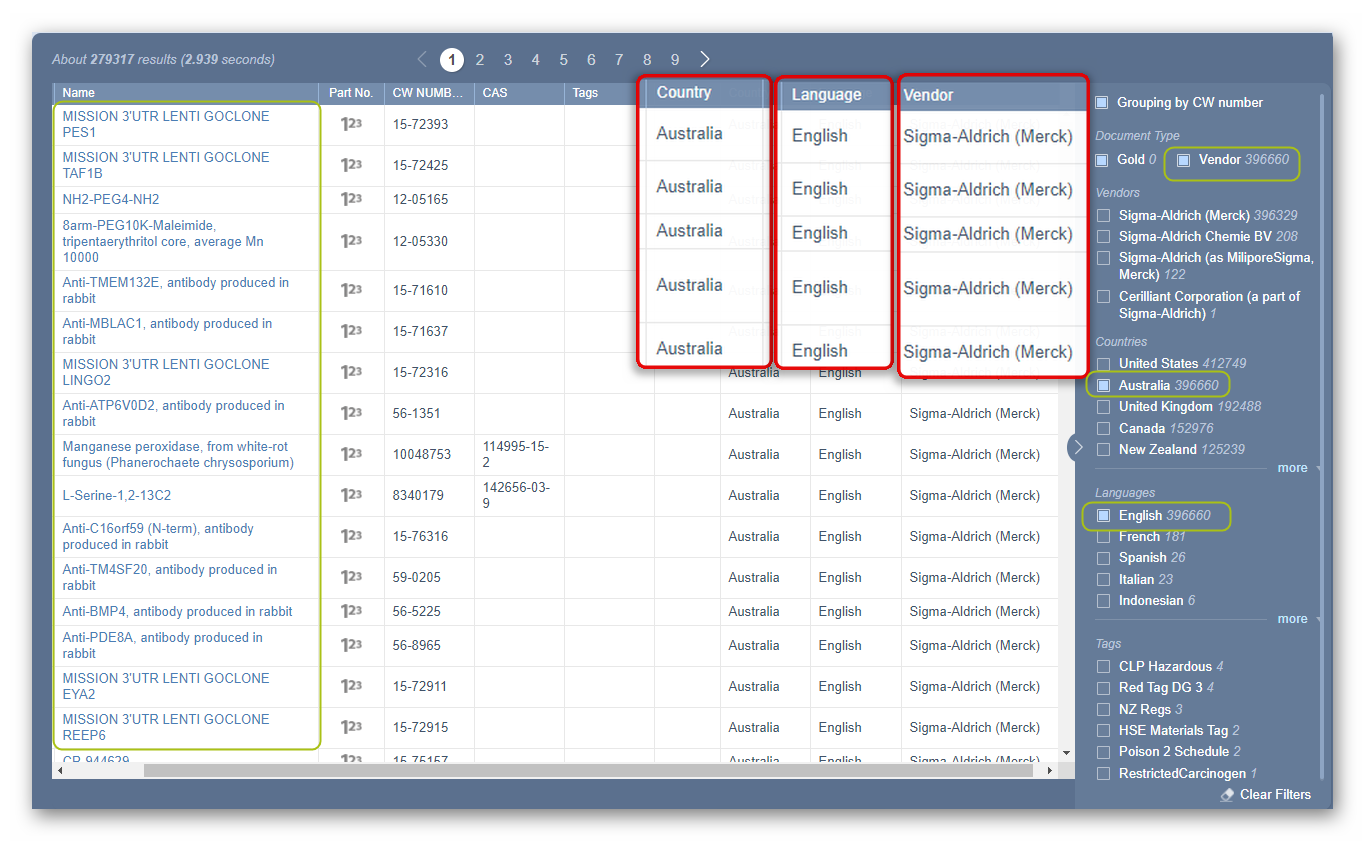
8. A list of available material records displays to filter further if required to simply the list of documents (SDS) by Vendor, Country, Language(s) and Tags (where available). Select the applicable document name to display the required vendor SDS.
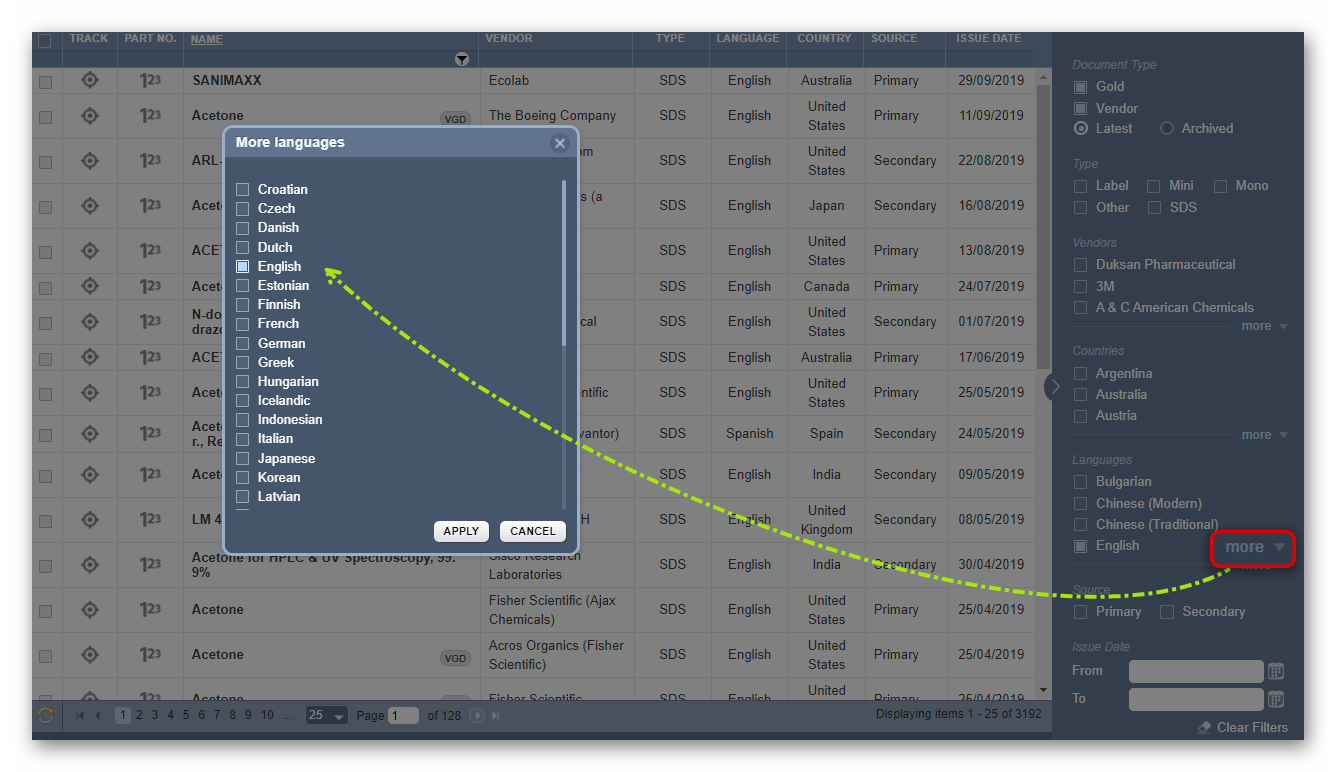
Filter your searched document (Vendor SDS) list by using the country and/or language specific checkbox filter to narrow the search, if your country and/or language is not showing on the default country and language list on the grid, click on “More” to select the country and/or language filter checkboxes and click apply. Note that you can select more than one country or language. In this worked example, Country and Language are filtered for Australia and English respectively.
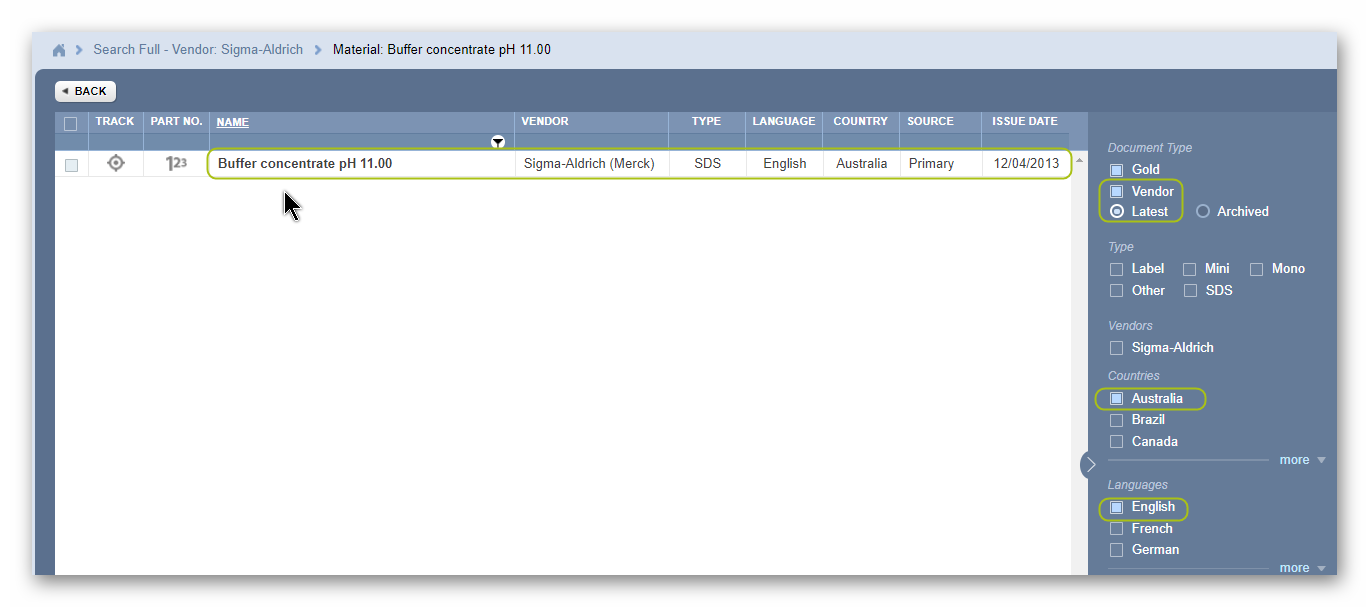
9. Select the Material Name alongside the row for the specific Vendor name from the filtered (by vendor, country, language) search results list.
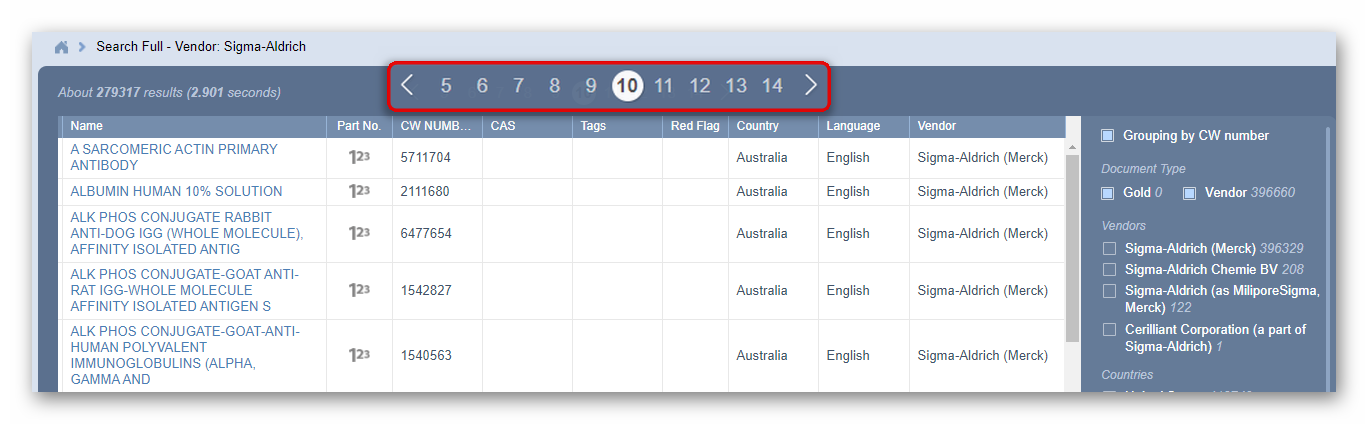
10. Use the pagination (at the top of the window) to find the respective document name. Click on the page number(s) to display more records.
11. The selected Vendor SDS is displayed.
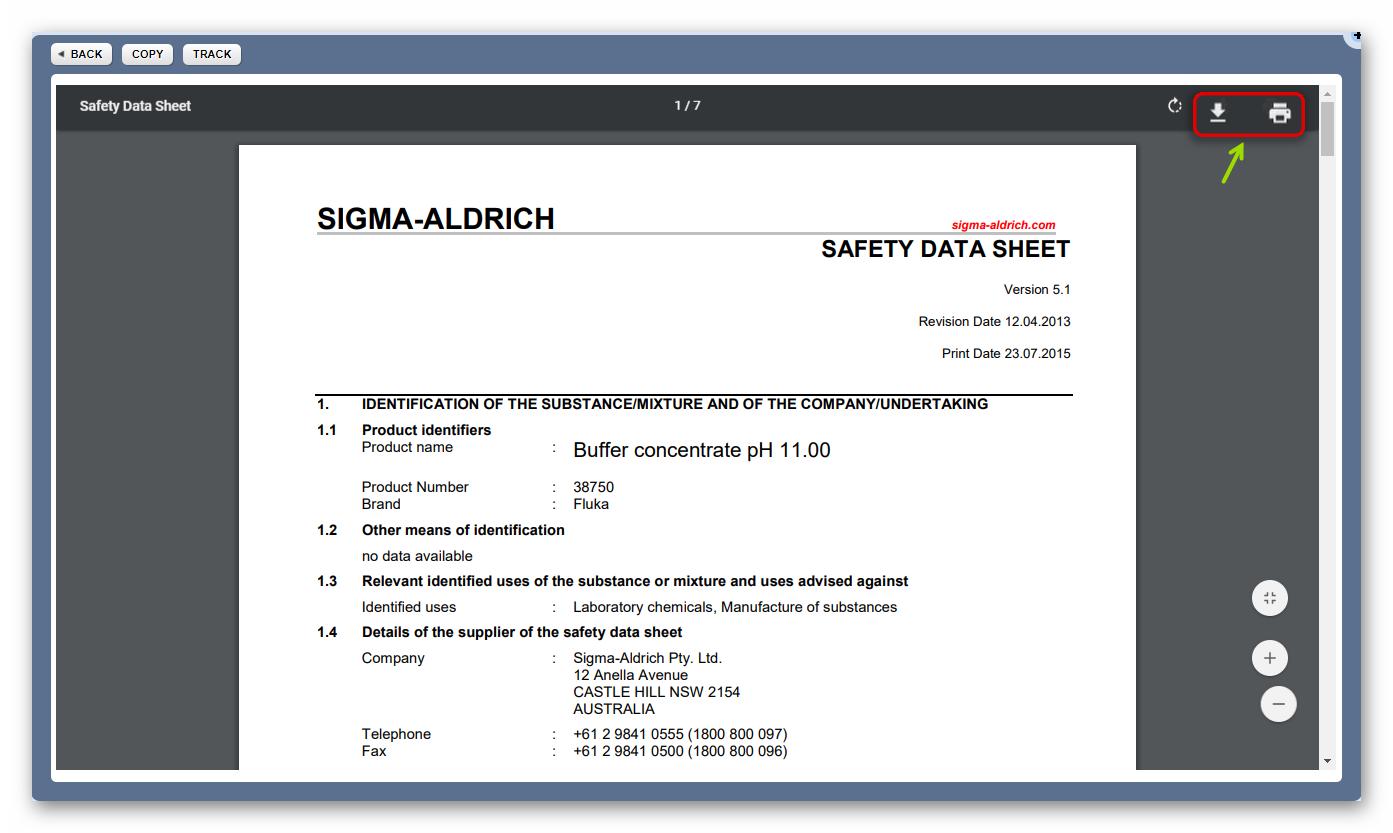
12. Print, Download or Share Vendor SDS.
A Vendor is also known as a manufacturer or supplier. It is the responsibility of the manufacturer of the chemical (product) to author and provide a valid safety data sheet that is compliant as per your jurisdictional instrument, such as a compliant SDS to GHS. Check with your regulator to ensure you have or use the applicable compliant SDS or refer to the code of practice for SDS within your jurisdiction or state. In general, a Vendor SDS must have 16 sections.
Was this article helpful?
That’s Great!
Thank you for your feedback
Sorry! We couldn't be helpful
Thank you for your feedback
Feedback sent
We appreciate your effort and will try to fix the article