The following steps illustrate how to use the simple search autocomplete method to search for a Vendor SDS by material name from your Own collection  .
.
- In the Home module
 , select the Simple search tab.
 - Select the OWN option to set the database path to look for the Vendor SDS from your inventory.
- Press the Vendor SDS button from the SDS panel to set the type of document.
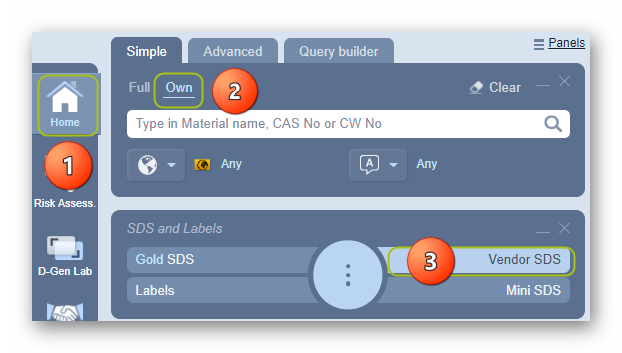
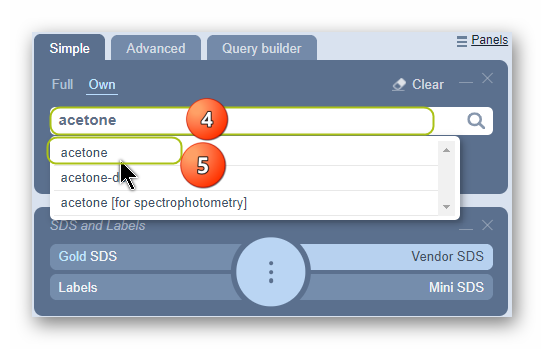
4. Type the material or chemical name in the Name/CAS free text field.
5. Select the material or chemical name from the autocomplete search list. In this case, “Acetone” is used to demonstrate the steps.
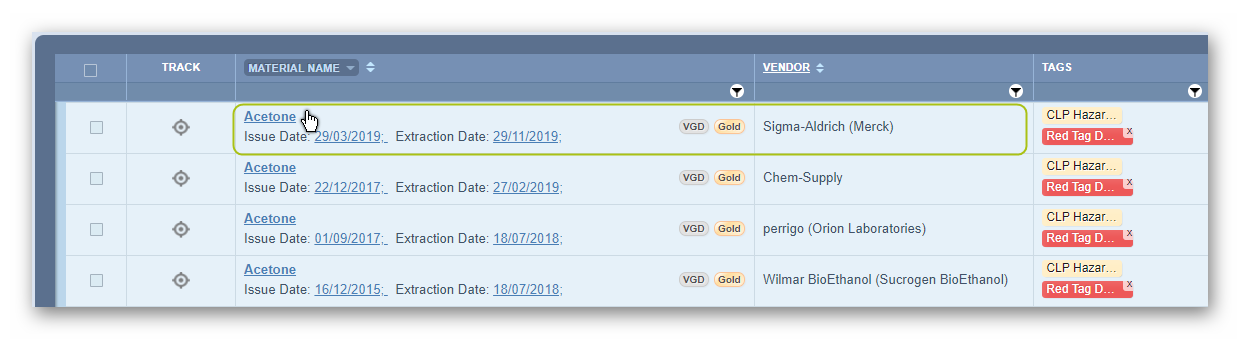
6. Select the material name if it is the only vendor record found. However, if there is more than one Vendor SDS, a multiple button will show on the grid alongside the same row for the material found in your own inventory. Select the  button to expand the list of cat names available linked to vendor documents for this material.

7. Select the name of the document by a specific vendor of interest to render the Vendor SDS. The Vendor SDS record will show the Issue Date and the Data Extraction Date conducted by Chemwatch.
8. The Document list will be displayed in the grid for any available SDS document details based on current filters, i.e., Name, Vendor, Document Type, Language, Country, Source, and Issue Date on the grid. The current filters are shown on the right-hand side panel.
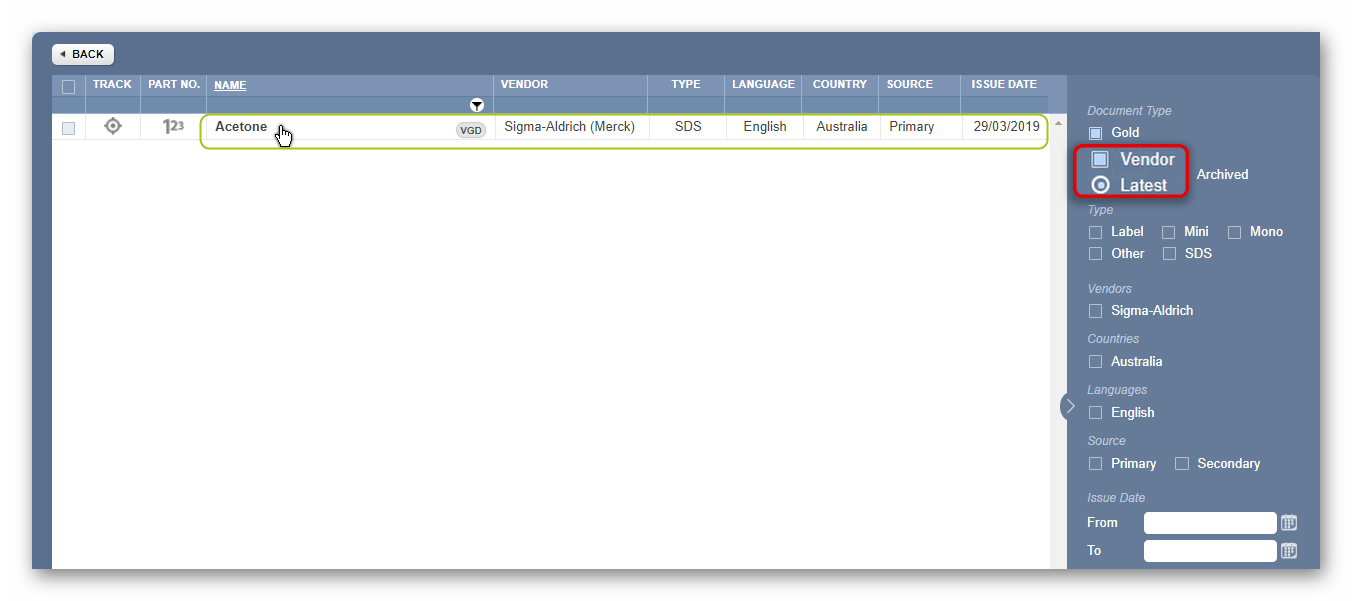
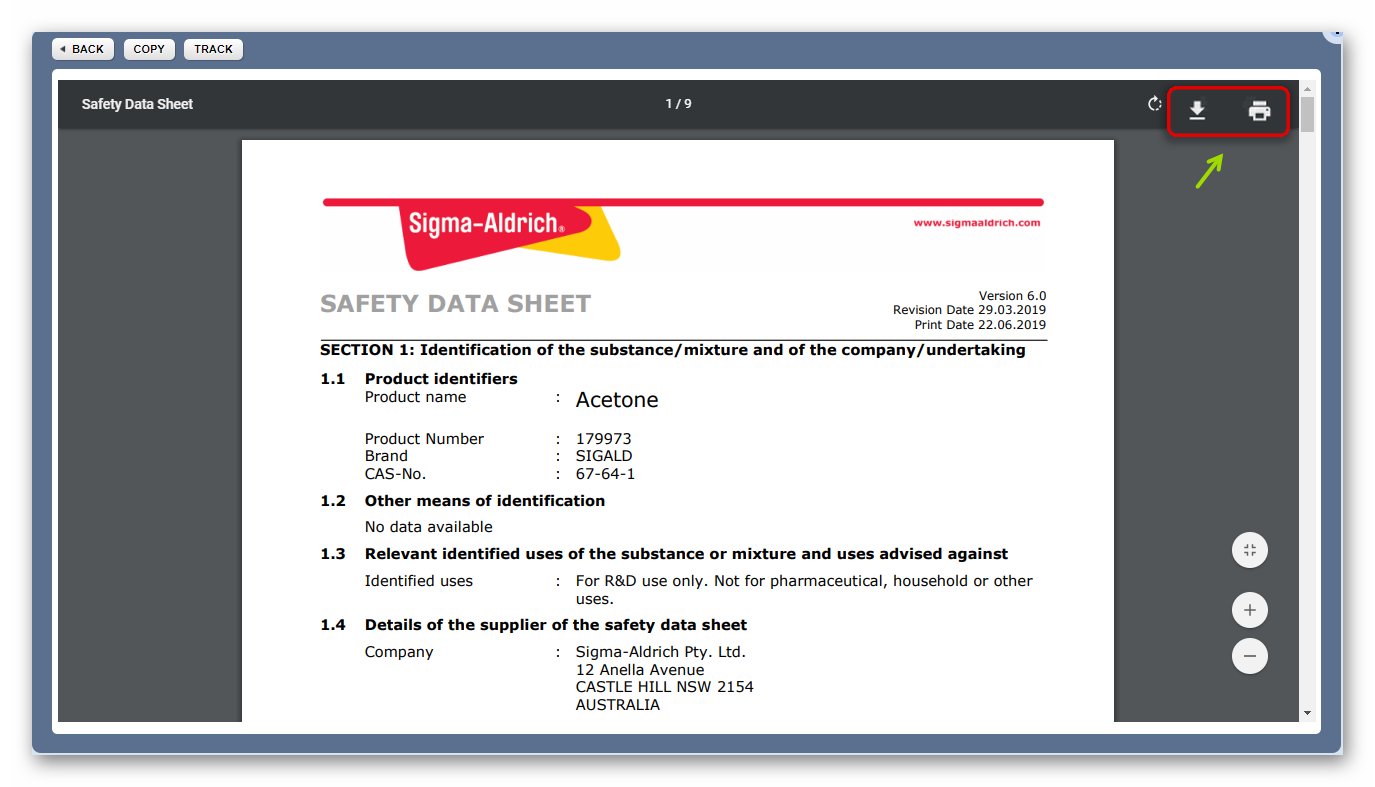
9. The Vendor SDS is displayed.
Was this article helpful?
That’s Great!
Thank you for your feedback
Sorry! We couldn't be helpful
Thank you for your feedback
Feedback sent
We appreciate your effort and will try to fix the article