Searching by CAS (Chemical Abstract Substance) number allows users to search for specific material SDS. follow the steps below.
- Select the Home module.
- Press the Advanced tab from the search panel.
- Press the Vendor SDS button from the SDS panel.
- Click the Full search option to look up the Vendor SDS by CAS number.
- Press the Name/CAS drop-down arrow to list the advanced search options.
- Click the CAS No search option from the drop-down list to set it as the current search parameter
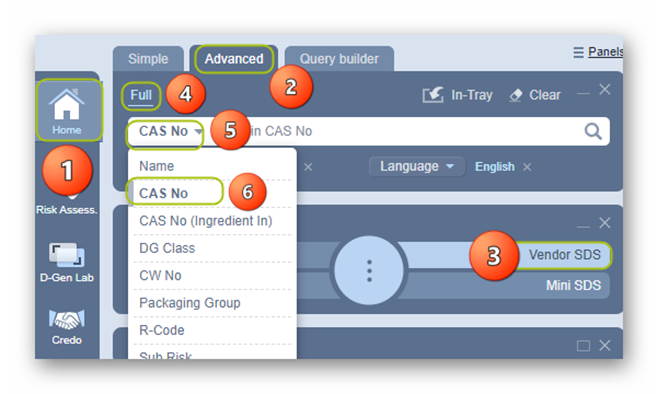
- Type the CAS Number in the CAS No free text field, e.g., 67-64-1 and select it from the autocomplete list (automatically starts the search).
- Press the Search button (magnifying glass) to search for a material with this CAS No.
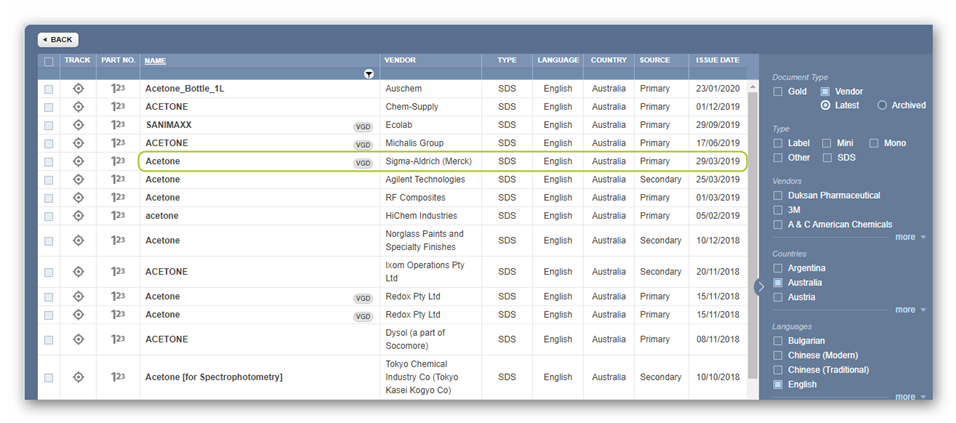
- Click the Name from the material search results list, e.g., acetone is the returned item in the search results list showing the matching CAS Number.

10. Click the Name from the document list, e.g., Acetone by Sigma-Aldrich (Merck) is one of the items in the search results list based on the matching CAS Number.
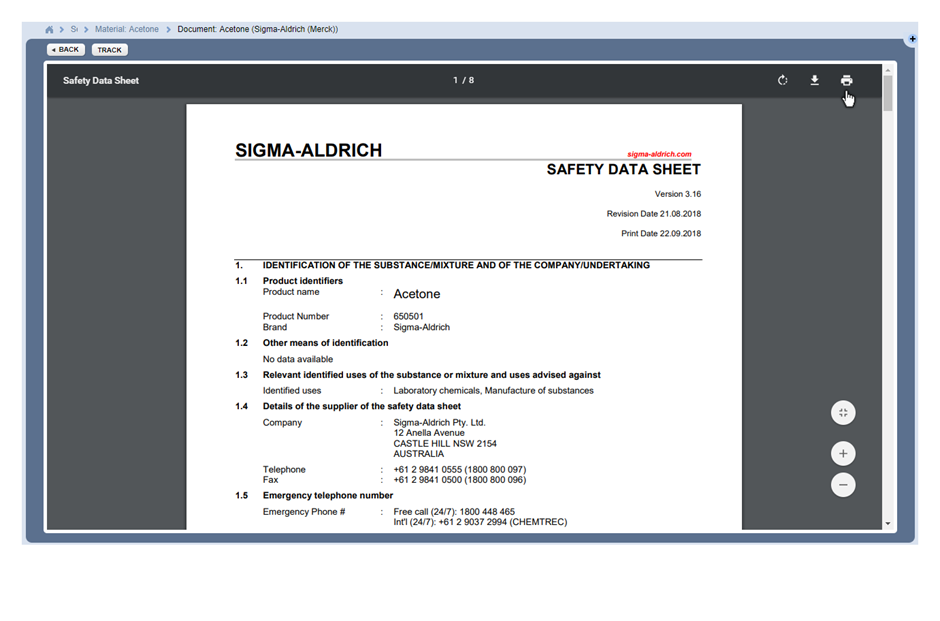
11. Vendor SDS display.
Note:
A CAS Number is a Chemical Abstract Number. This is a unique numeric identifier in the CAS Registry, designated to a known substance.
Was this article helpful?
That’s Great!
Thank you for your feedback
Sorry! We couldn't be helpful
Thank you for your feedback
Feedback sent
We appreciate your effort and will try to fix the article