To search for a material's Vendor SDS, follow the steps below.
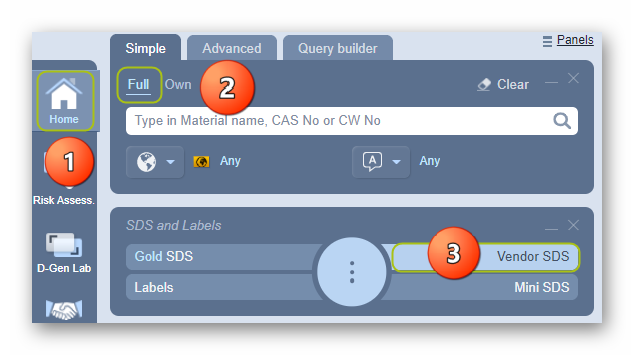
1. Select Home module,
2. Press the Simple search tab (if it is not already the default mode).
3. Press the ‘Vendor SDS’ button from the SDS panel to set the type of document.
4. Click the ‘Full’ option in the Search panel to set the database path to the Full collection to look up the Vendor SDS from the Chemwatch full database.
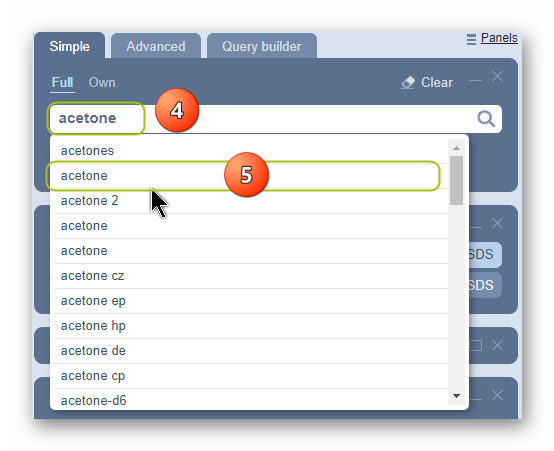
5. Type the material or chemical name in the Name/CAS free text field.
6. Select the material or chemical name from the autocomplete search list panel. In this case, acetone is used to demonstrate the steps.
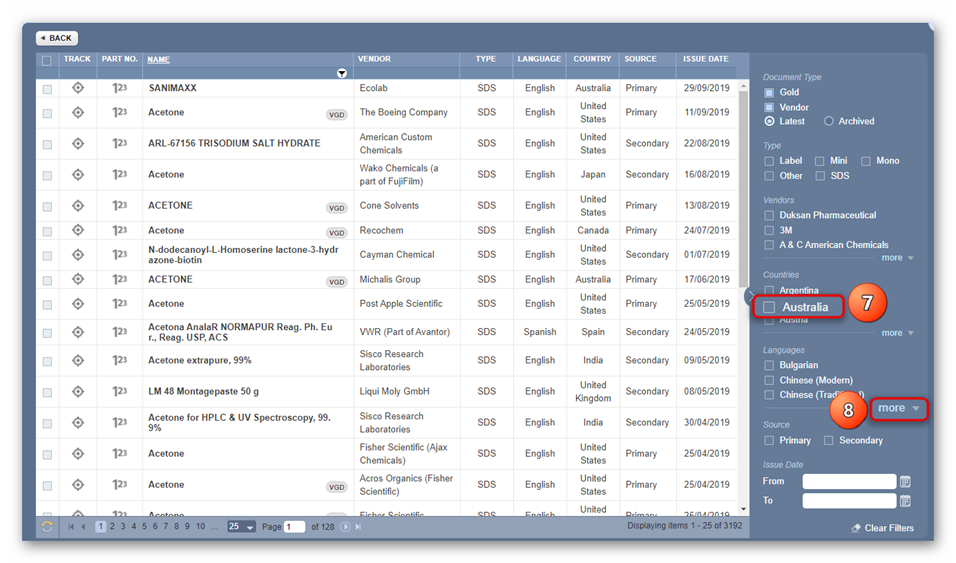
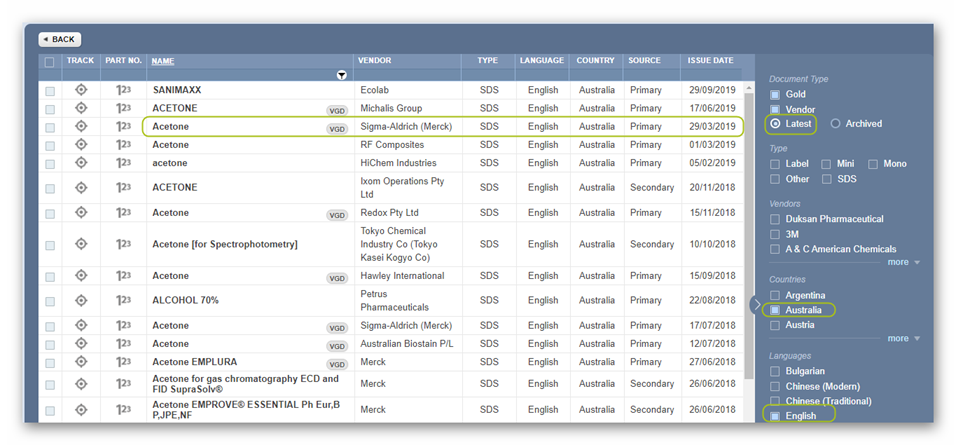
7. Select the name of the material by a specific vendor of interest to display a list of available multiple vendors.
 8. Select the country checkbox by clicking the respective checkbox on the sidebar filter.
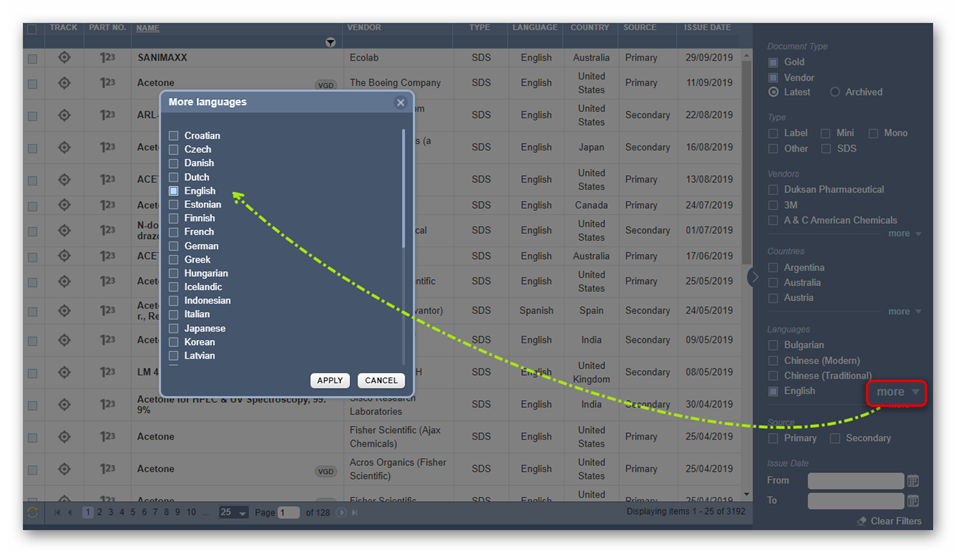
9. Filter your searched document (Vendor SDS) list by using the language-specific checkbox filter to narrow the search, if your language is not showing on the default language list, click “More” to select a desired language and click apply. Note that you can select more than one language.
10. Select the name of the document by a specific vendor of interest to render (display or load) the Vendor SDS document).
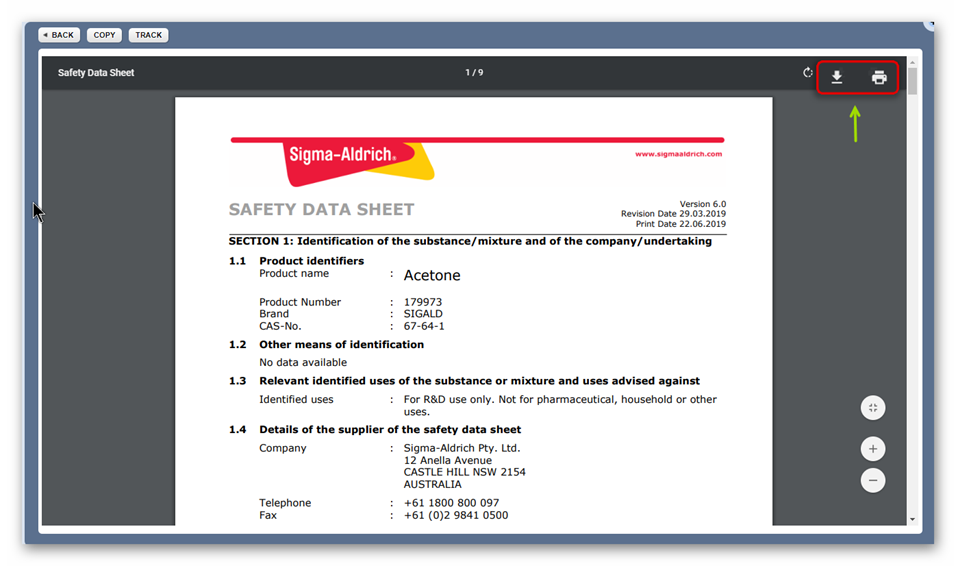
11. The vendor SDS is displayed. Print, download.
Was this article helpful?
That’s Great!
Thank you for your feedback
Sorry! We couldn't be helpful
Thank you for your feedback
Feedback sent
We appreciate your effort and will try to fix the article