The Quick Search filters out the product from the materials list in a selected folder. The steps below show how to search for a material within a folder inventory list.
Open the Home module .
.
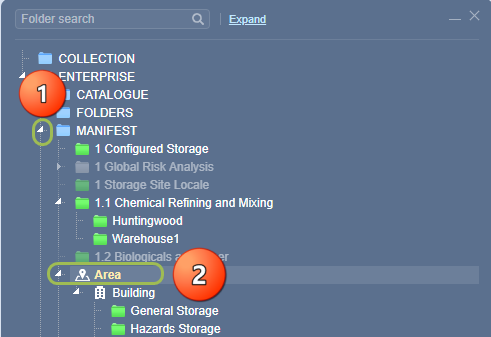
- Expand
 the Manifest directory nodes to view the folder location, e.g., Area node at level 1.
 - Press the Folder name to view the list of materials.
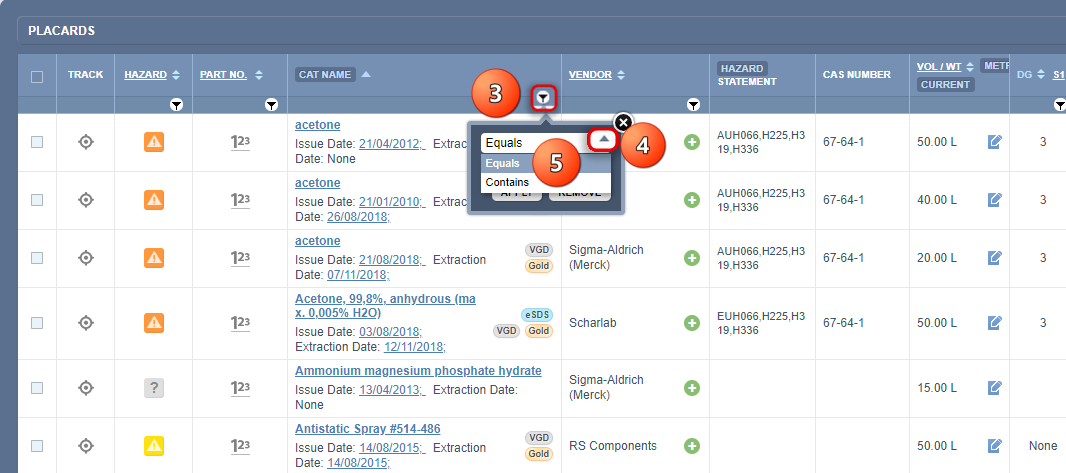
3. Click the Cat Name column filter icon .
.
4. Click the drop-down arrow from the Cat Name filter panel.
5. Select the Search Operand from the hazard’s filter options, e.g., Equals.
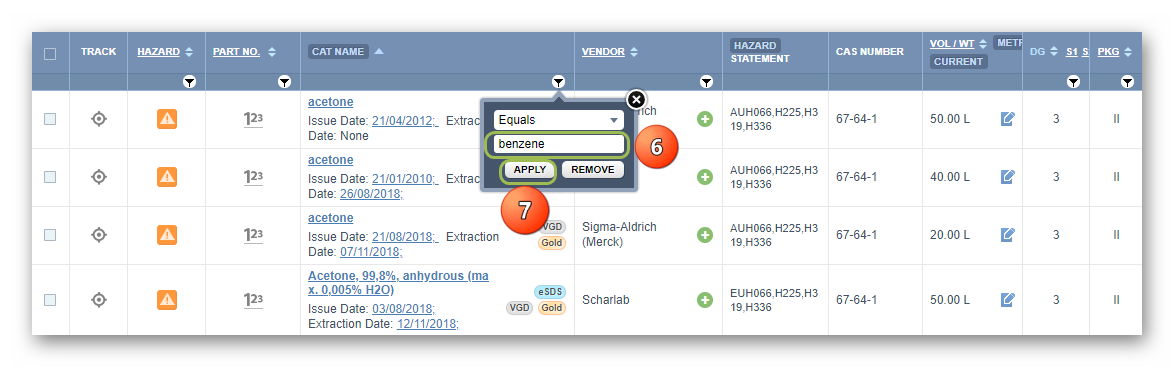
6. Type the exact name of the product in the Name/CAS free text field, e.g., Benzene.
7. Select the Apply button from the hazard filter panel to filter the list.
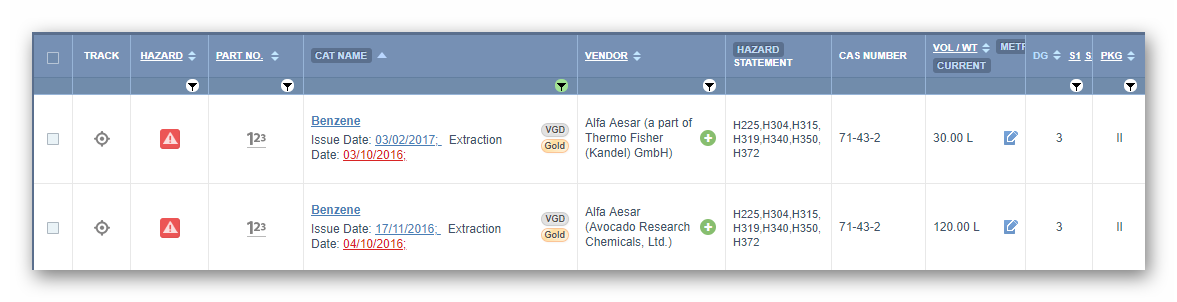
8. The filtered list shows the exact Cat Name match located in the respective folder.
9. Use the active filter icon  and press the Remove button to close the filtered list and go back to the Cat Name original list.
Was this article helpful?
That’s Great!
Thank you for your feedback
Sorry! We couldn't be helpful
Thank you for your feedback
Feedback sent
We appreciate your effort and will try to fix the article