Tracking a material allows users to identify folder locations where the material or product is stored in the site map (folder structure) and represented by the various colour-coded tracking icons.
Track Icon | Colour Code | Function |
| Grey | The track icon defaults from search results grid and track a material’s folder location anywhere in the folder structure. |
| Red | If the material track icon within a row in the Manifest grid is red, this means that the material is NOT in the current folder. |
| Yellow | If the material track icon within a row in the Manifest grid is yellow, this means that there are materials in both the current folder and subsidiary folders. |
| Green | If the material track icon within a row in the Manifest grid is green, this means that the material exists in the current folder. |


The following steps illustrate how to track  a material to identify where it might be located in the folder tree structure.
- Use the simple search autocomplete method to search
 for a material from the CW full collection and track it from the search result to find out if exists in a folder.
 - Use the simple search autocomplete method to search
 for a cat name from the CW full collection and track it to find out if exists in a folder.
 - A material can also be tracked from a list whilst viewing contents of a folder.
Steps to Track a Material to Identify Folder Location
- In the Home module
 , select the Simple tab.
 - Click the ‘Full’ search option to look for the Vendor SDS material from the Chemwatch full database collection.
- Press the ‘Vendor SDS’ button in the SDS and Labels panel to set the type of document.
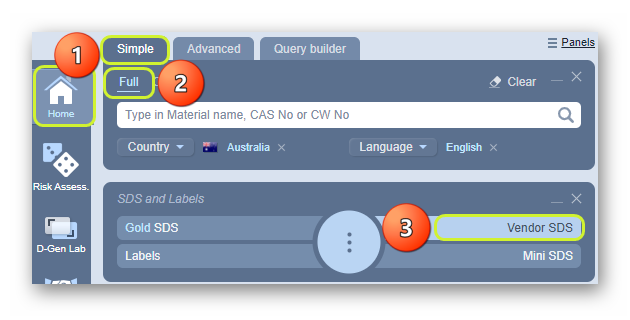
4. Type the material in the ‘Material name, CAS No or CW No’ text field.
5. Select the material or chemical name from the autocomplete search list panel. In this case, acetone is used to demonstrate the steps.

6. Check if the Materials Gold/Vendor checkboxes are further filtered for specific country and language.
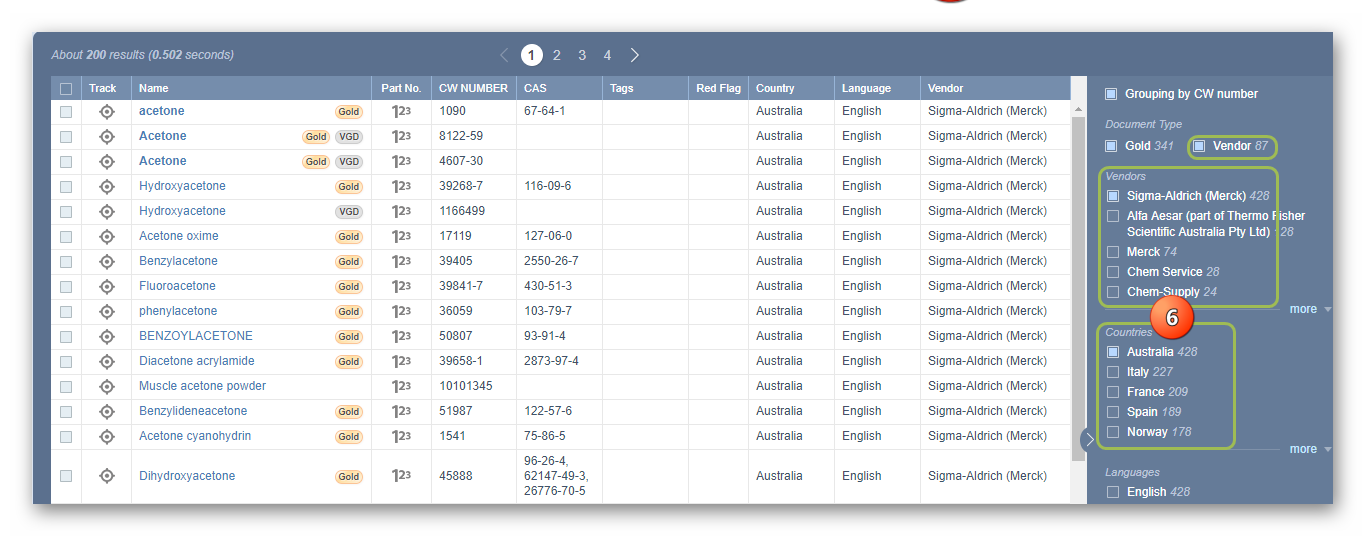
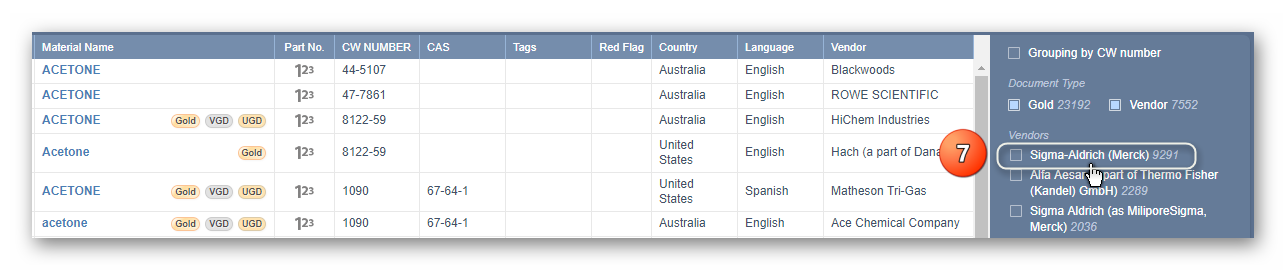
7. Select the Vendors checkbox by a specific vendor of interest to render (display or load) the Vendor SDS document list to view available SDS by issue date(s).
8. Select the specific Country checkbox to use the filter panel for further sieving through the list. In this case, filters are used, otherwise, if the country and language is not specified, the system may not be able to track the exact product’s location in any folder.
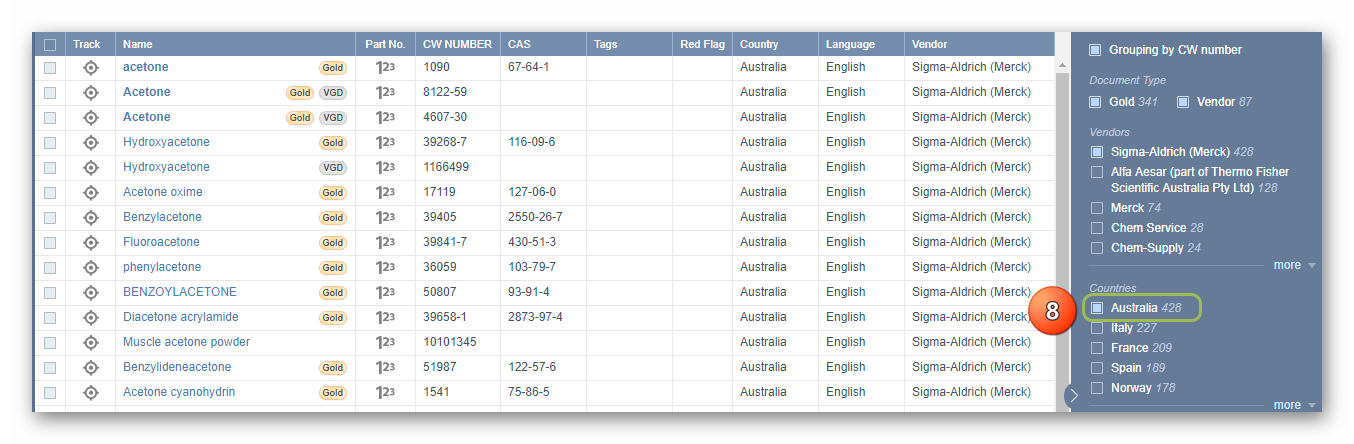
9. Press the Track icon next to the material name in the search results grid.
10. Select the tracked folder location node to display the list and confirm that the material is in that folder.

If the material or chemical or product is available in your inventory, a folder will be identified (highlighted) from the tree structure.
Was this article helpful?
That’s Great!
Thank you for your feedback
Sorry! We couldn't be helpful
Thank you for your feedback
Feedback sent
We appreciate your effort and will try to fix the article