The steps below provide details on how to add a single SDS into a folder using the drag-and-drop function.
Steps to Search and Drag and Drop Material.
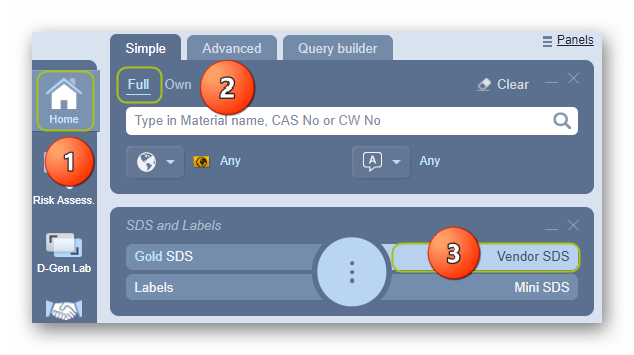
- In the Home module button
 , select the Simple Search tab
 - Press the ‘Vendor SDS’ button from the SDS panel to set the type of document.
- Click the Full option in the Search panel to set the path to the Chemwatch full database.
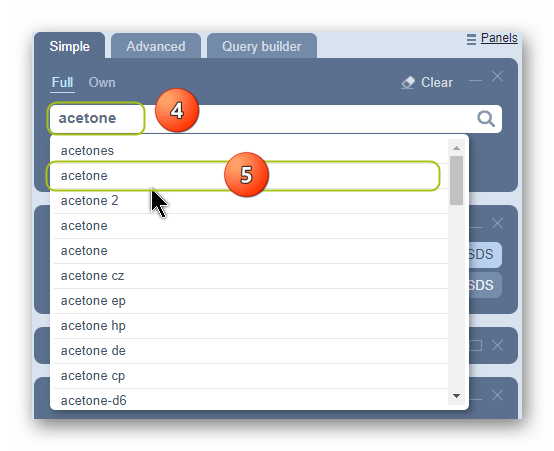
4. Type the material or chemical name in the Name/CAS free text field.
5. Select the material or chemical name from the autocomplete search list panel. In this case, acetone is used to demonstrate the steps.
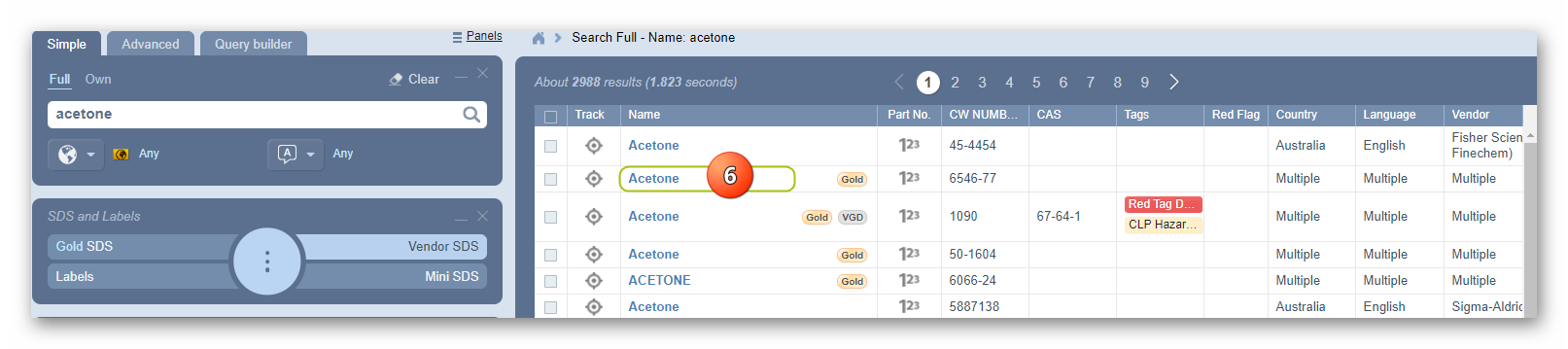
6. Select the name of the material to display a list of available multiple vendors.
7. Expand  the Manifest directory, Area, and Section to view folder nodes to identify the specific folder location, e.g., the storage folder is grey
  , depicting an empty folder.
8. Drag and drop the document name onto the destination folder.
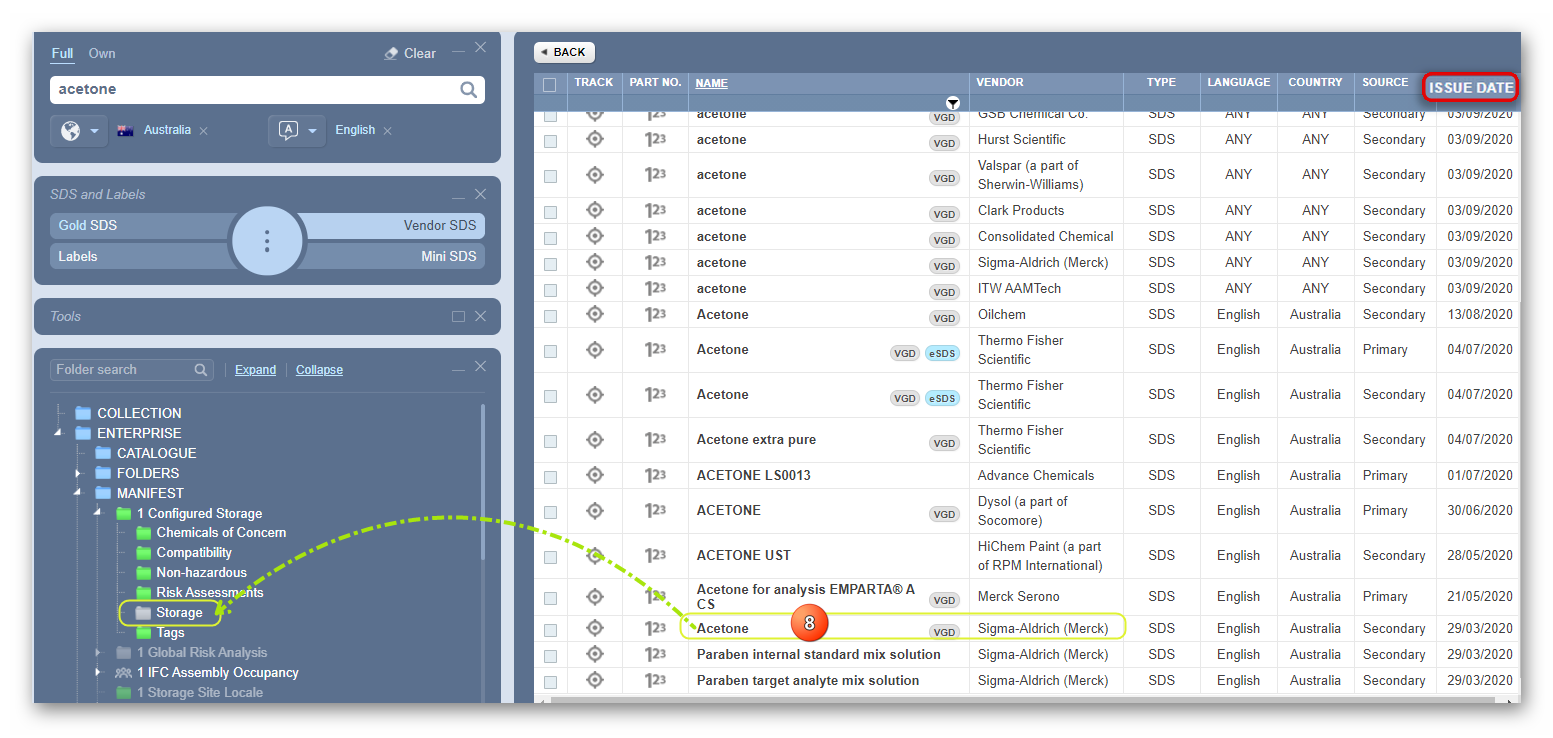
9. The storage grey folder  turns green
  , which depicts a folder with a material added into it. Select the green folder to display the record of added material.

The copied product and accompanying Vendor SDS will be added into the destination folder. A confirmation message will be displayed to confirm the successful task. If a user does not have read-write access to a folder, a message will display to seek further help from the administrator.
Was this article helpful?
That’s Great!
Thank you for your feedback
Sorry! We couldn't be helpful
Thank you for your feedback
Feedback sent
We appreciate your effort and will try to fix the article