Steps to Adding or Editing Volume/Weight of a Material
In the Home module button , select the Simple Search tab.
- Expand
 manifest directory nodes to view the folder location, e.g., level 3 node.
 - Press the Folder name. Take note of the manifest list grid as it defaults to the Cat Name column header name. Switch the Cat Name to Material Name from the Cat Name header.
- Click the Multiple button
 to expand list of documents for the grouped material. Note that the volume/weight of the products are zero units
  in this case.
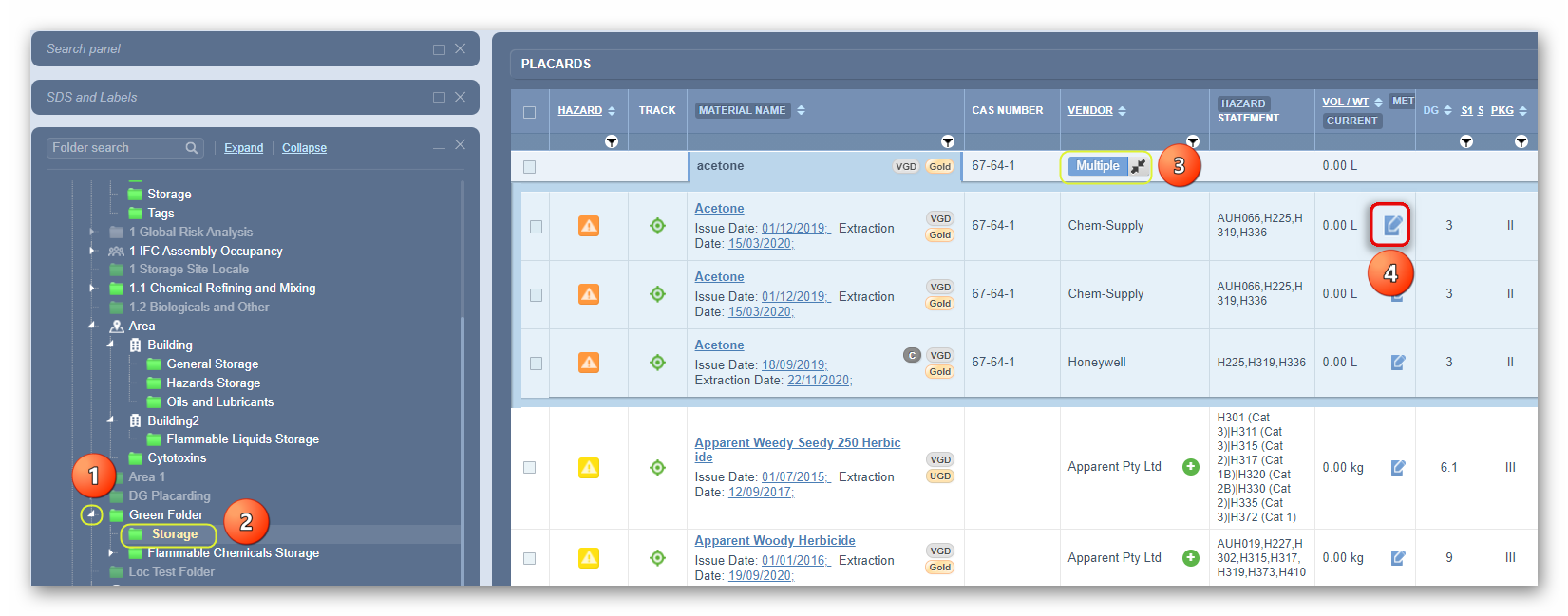
Note that it is NOT possible to add volume/weight to the material level (row) directly when in Material Name view mode. Users need to use the Multiple button  to expand the row to view the product(s) linked to a Vendor SDS for that material.
4. Click the Edit button  to open the edit panel.
5. Select the Current Volume/Weight text field and enter the desired amount.
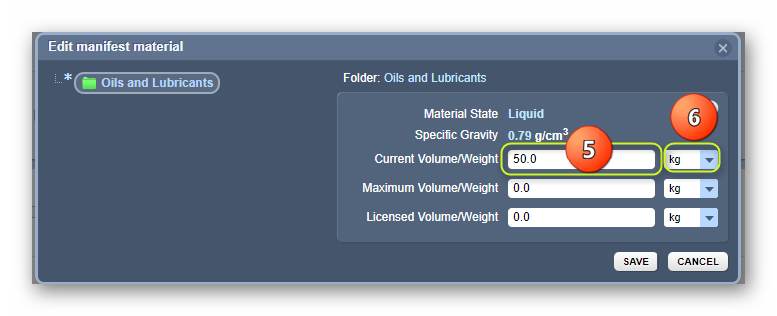
Note that this product is a liquid. Refer to default data within this panel.

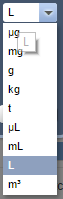
6. Select the drop-down arrow to change the unit of measure from kg to L.
7. Select the Maximum Volume/Weight text field and enter the desired amount (optional). Apply the correct unit of measure.
8. Select the Licensed Volume/Weight text field and enter the desired amount (optional). Apply the correct unit of measure.
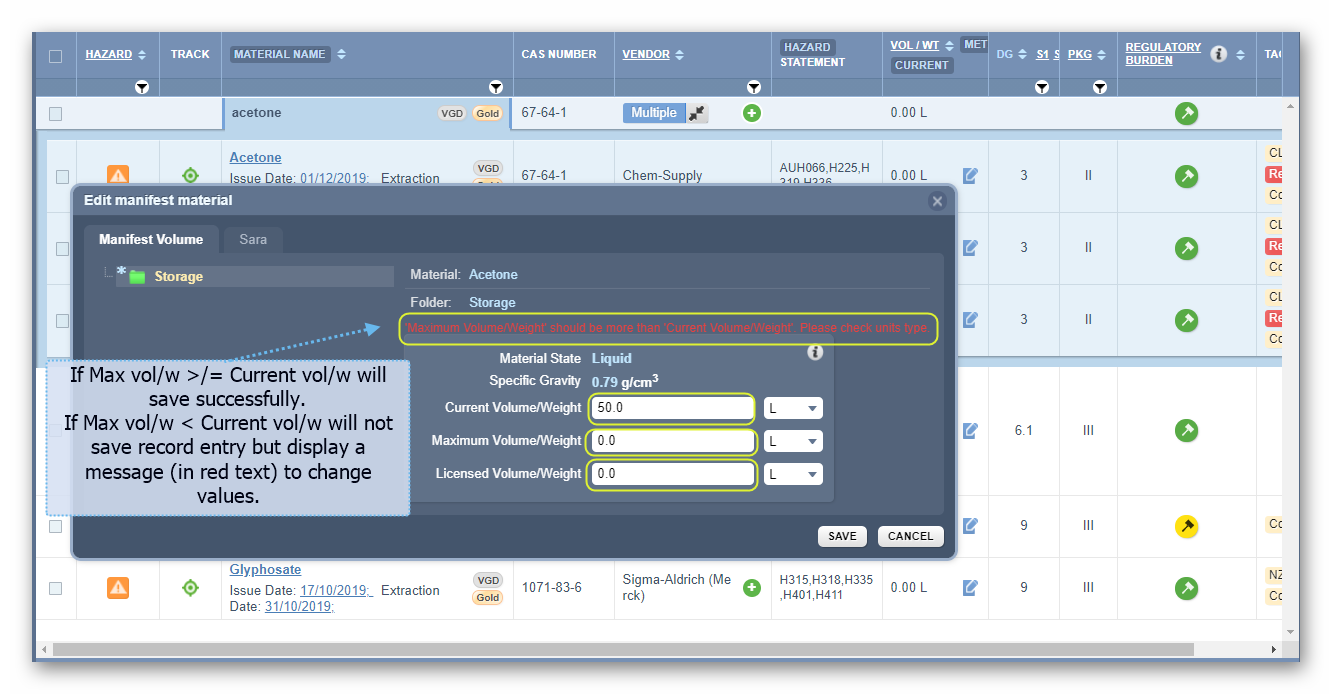
Note that if the Current Volume/Weight is greater than the maximum or licensed value, in this both are retained at 0.00L, it is important to be cautious as in this case scenario when trying to save your record entry, the system will flag out a message (in red) stating that Maximum volume/weight should not be more than Current Volume/Weight as depicted below.
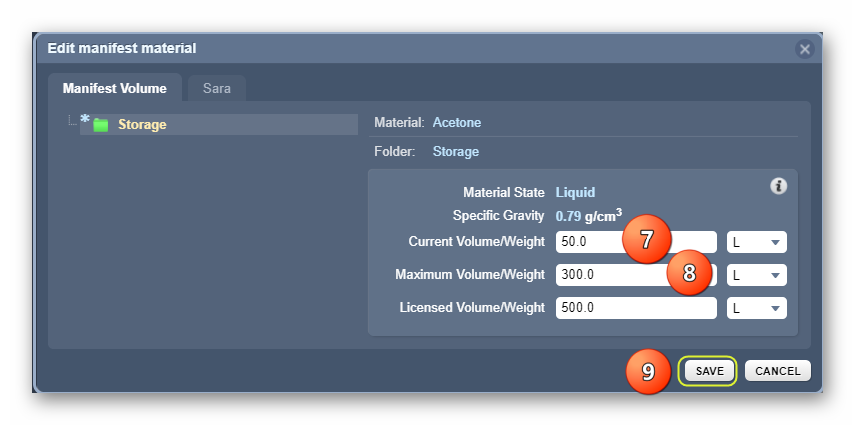
9. Press the Save button
A confirmation message will be displayed to confirm a successful task. If a user does not have read-write access to a folder, a message will display to seek further help from the administrator.

10. Summary about viewable the volume/weight for this item. Expand the Multiple  button to view details of the product. The default volume/weight is set to “Current”, which means the grid will display the current volume assigned to this item. The material name is “acetone” showing the 50.00L per the product’s assigned volume of 50.00L for the current value.
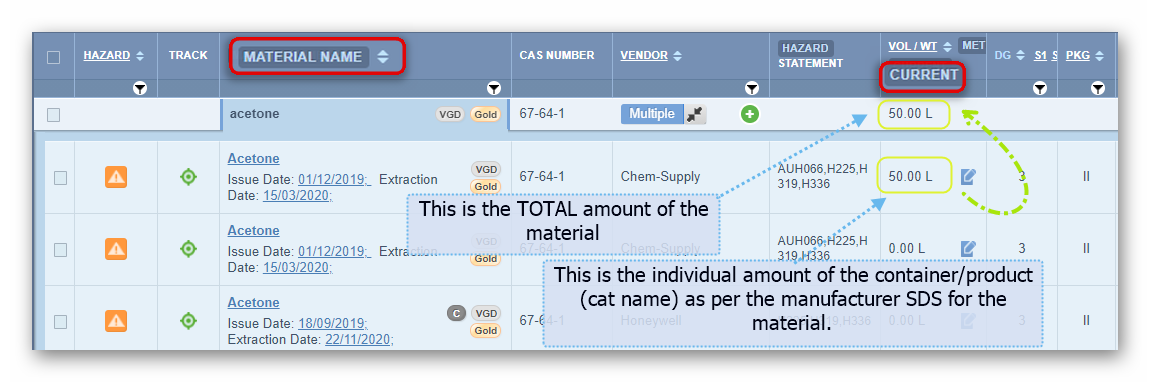
11. To view the “Maximum” volume/weight of the same product, press the “Current” button  from the VOL/WT column header.
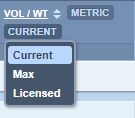
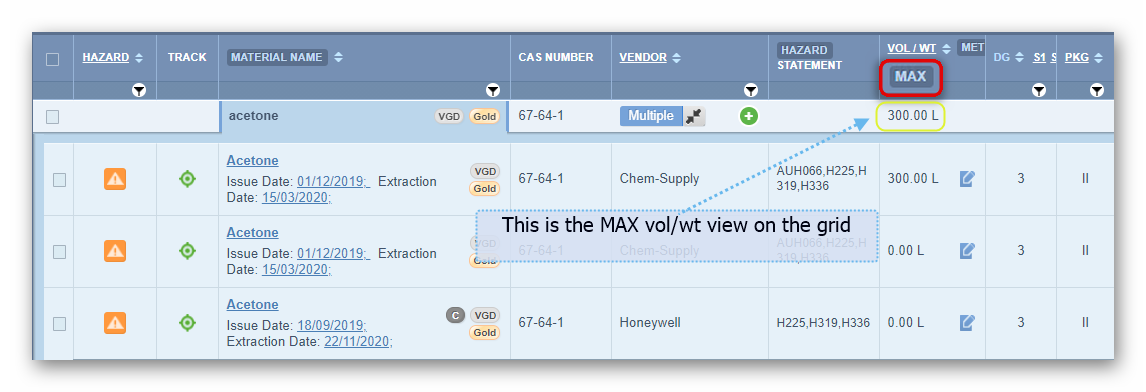
12. Select the “Maximum” option 
As soon as the Max button option is selected, the current view changes to the maximum value.
Was this article helpful?
That’s Great!
Thank you for your feedback
Sorry! We couldn't be helpful
Thank you for your feedback
Feedback sent
We appreciate your effort and will try to fix the article