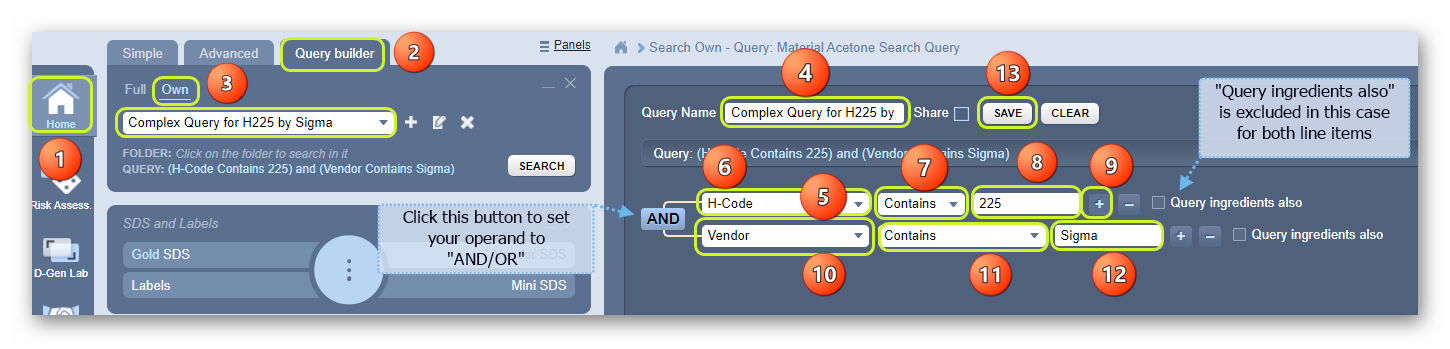
- Select the Home module
 .
. - Press the Query Builder button from the Search Panel.
- Click the Add icon
 .
. - Type the query name in the text field, e.g., Complex Query for H225 by Sigma.
- Click the drop-down arrow to select the search option from the drop-down list.
- Choose the search option H-Code.
- Click the drop-down arrow
 to select the string operand, e.g., Contains.
 - Type the hazard code classification (H-Code), e.g., 225.
- Click the Add button to add another string.
Note that another line operand will be added and will default to the logical operand “ ”. If you choose to change this operand, click on this “AND” button and it will change to “
 ” for the desired operation to meet your search criteria.
10. Click the search option’s drop-down arrow to add another search index, e.g., Vendor.
11. Assign the search operand, e.g., Contains.
12. Type the name of the Vendor in the text field, e.g., Sigma. Note that this query will exclude ingredients.
13. Click the Save button to complete the query creation.
A confirmation message is displayed.

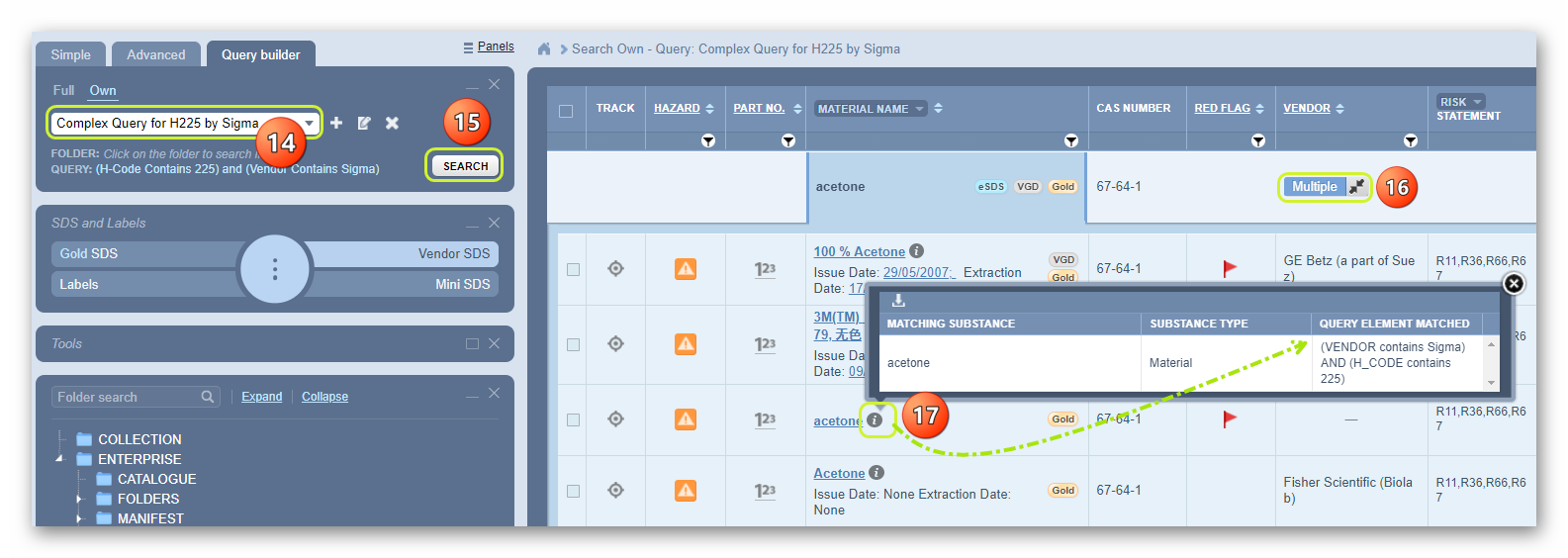
14. Use the main query builder search field’s drop-down arrow to select this newly added query to search the “Own” database.
15. Click the  button.
16. Click the  button to expand material name row to cat name (product names) associated with the found material.
17. Hover mouse pointer on the cat name’s information icon view more details on the pop-window.
18. You may close the pop-up window by clicking on the  icon.
icon.
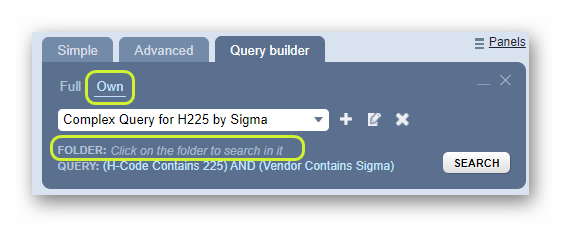
If you search in “Own” the system provides information under the main search field to choose a folder that can be used to search in it for that search query.
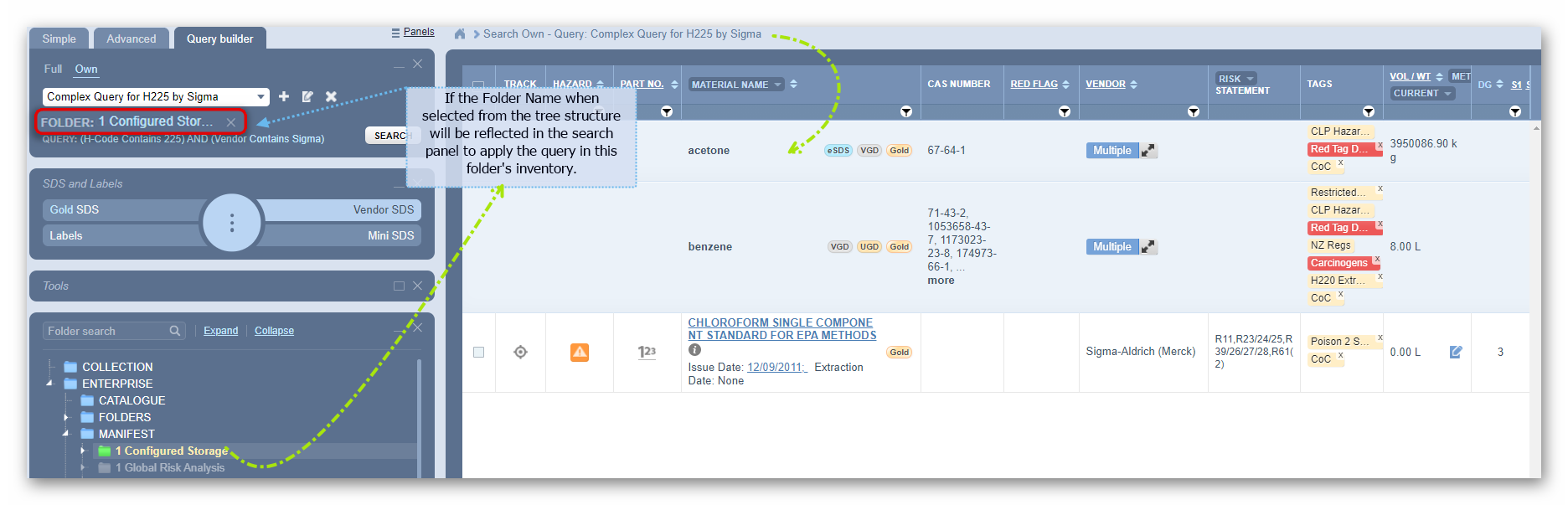
The example below displays a selected folder name/location when for a query. In this case, the query name “Complex Query for H225 by Sigma” has been used to find any records that meet this criterion.
Was this article helpful?
That’s Great!
Thank you for your feedback
Sorry! We couldn't be helpful
Thank you for your feedback
Feedback sent
We appreciate your effort and will try to fix the article