General notes added for materials will be displayed in the materials' grid' "Note" column.
Steps to Add a General Note for a Material
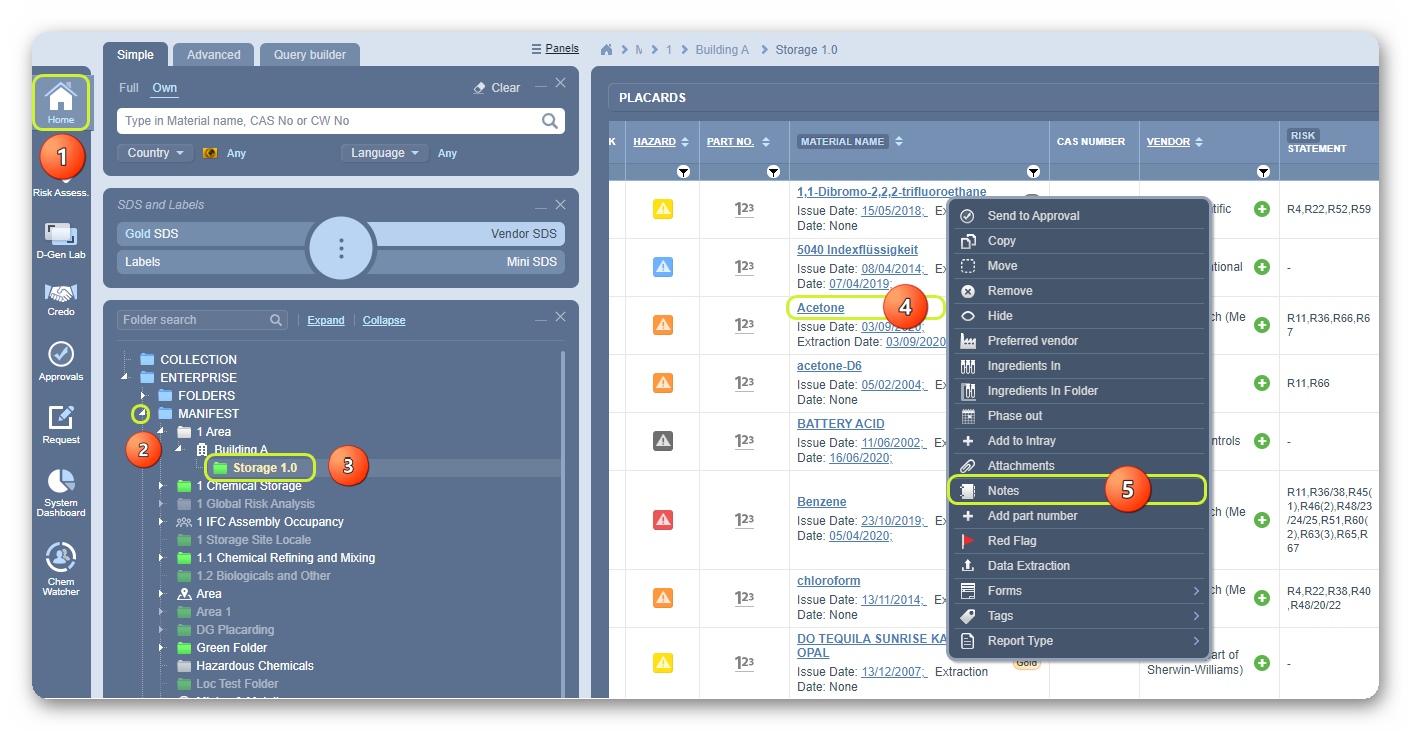
- Open the Home module
 .
. - Expand
 Manifest directory nodes to view folders.
 - Press the Folder name where the material is located.
- Right-click the Material Name.
- Select Notes from the context menu.
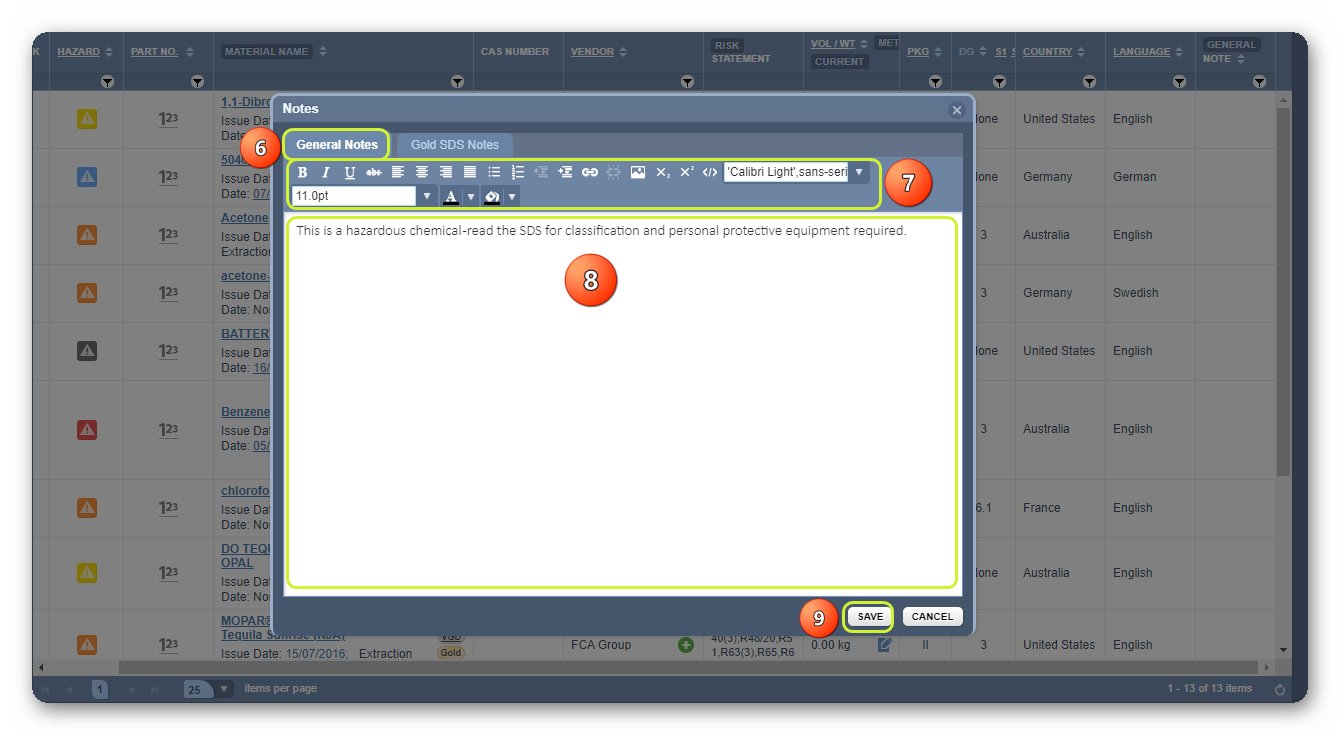
6. Press the General tab to add general information on the note for the specific material.
7. Type the information in the free text field, e.g., This is a hazardous chemical-read the SDS for classification and personal protective equipment required.
8. Use the Notes Editor features to modify how the information will be displayed on screen.
9. Press the Save button.
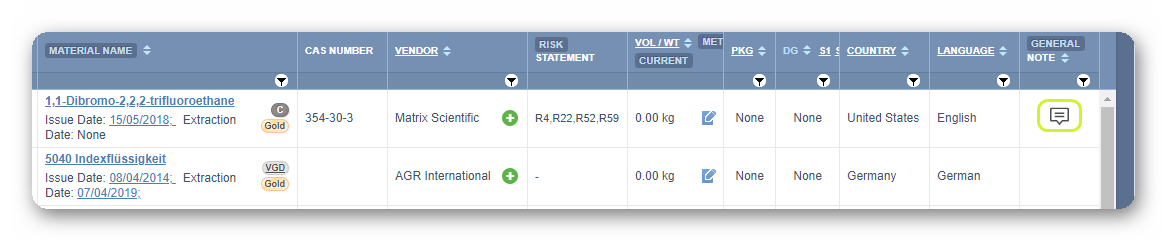
10. A confirmation message is displayed. The Notes button  is automatically placed on the Notes Column cell.
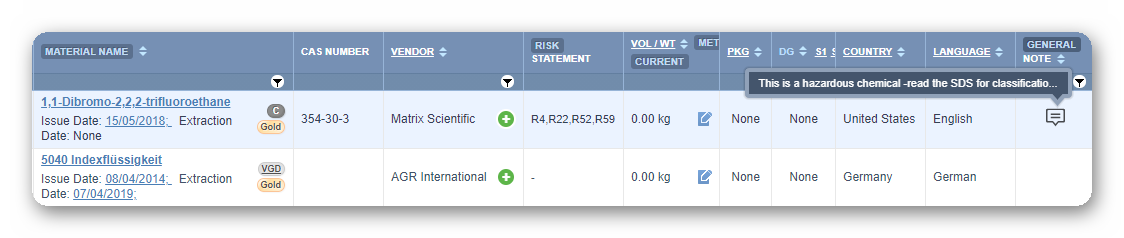
11. Hover the mouse pointer over the Notes button to view information.
Was this article helpful?
That’s Great!
Thank you for your feedback
Sorry! We couldn't be helpful
Thank you for your feedback
Feedback sent
We appreciate your effort and will try to fix the article