A Label is a document that is used to identify a substance or a chemical in a container or package. It is often the initial source of information, presented in a written and may include graphics and is attached or on the outside face of a container or package. In general, a label is required for any substance, mixture or article classified as a hazardous chemical for health and safety compliance.
The label enables employees at the workplace to identify the product, hazards, supplier details and precautionary information. The manufacturer or importer of a workplace hazardous chemical must ensure the chemical is correctly labelled as per GHS requirements.
The steps below illustrate how to use the simple search autocomplete method to search for a material from the full Chemwatch database collection and display a Label.
Steps to Search for a Material and Display a Label
- Press the Home module
 .
. - Click the Full option in the Search panel to set the database path to the Full collection to look up for the Vendor SDS from the Chemwatch full database.
- Press the Label button from the SDS panel to set the type of document.
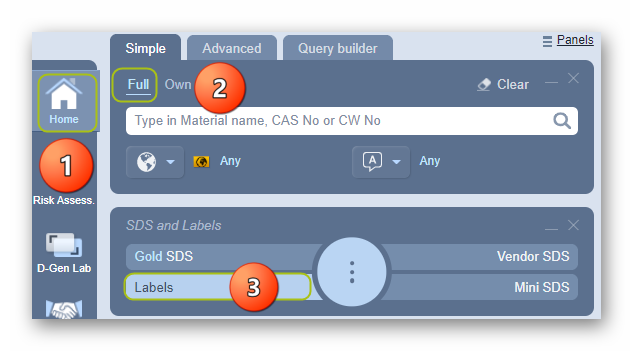
4. Type the material or chemical name in the Name/CAS free text field.
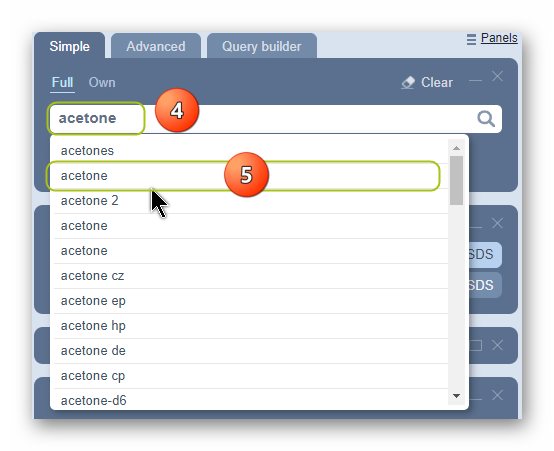
5. Select the material or chemical name from the autocomplete search list. In this case, ‘Acetone’ is used to demonstrate the steps.
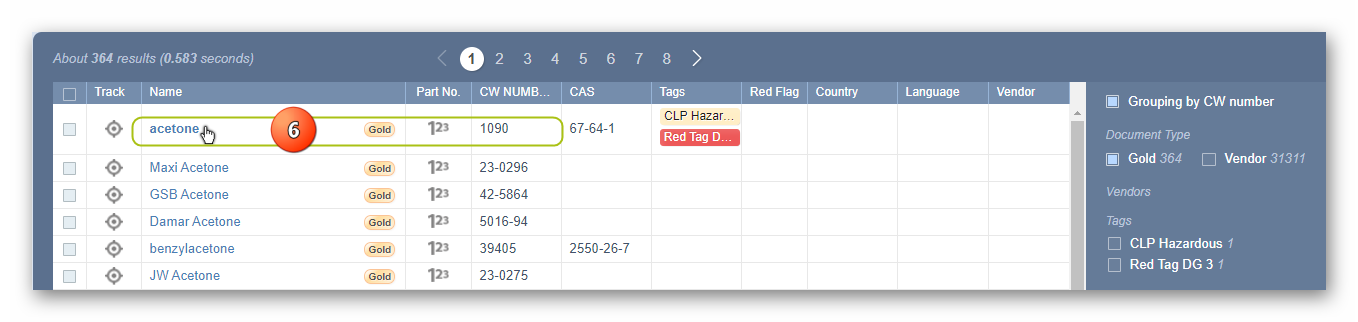
6. Select Material Name by a specific CW Number to display a Gold SDS.
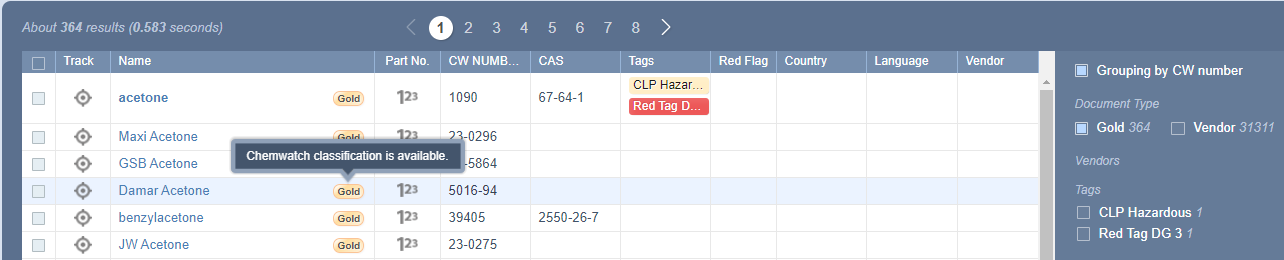
The label depends on the Gold SDS availability in the system (that is; if Chemwatch has authored the Gold SDS), the  button will be displayed on the material’s search results table as shown below with a tag description “Chemwatch classification’s availability”.
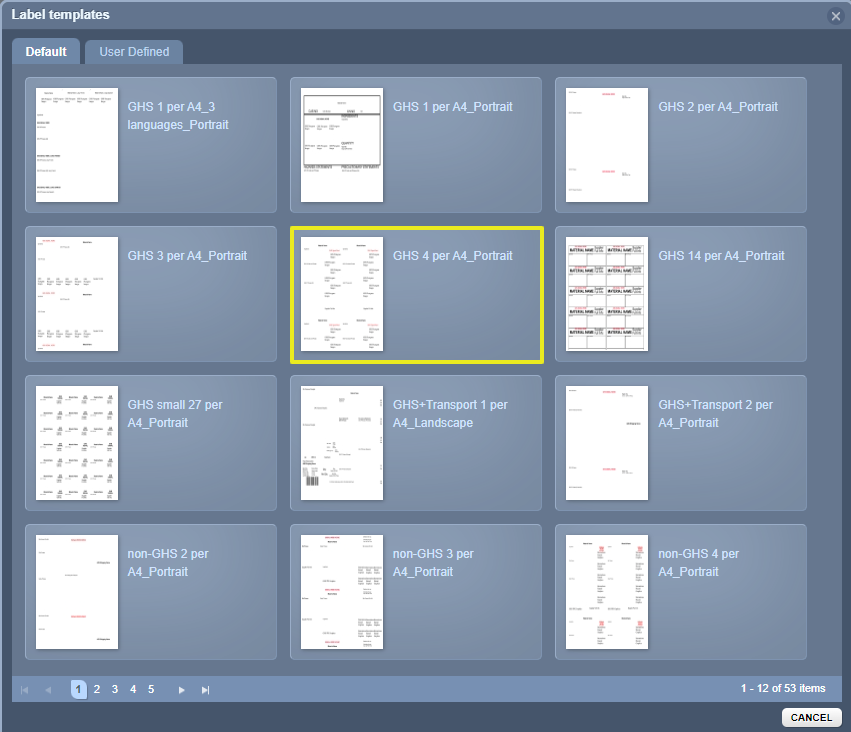
7. Select a Label template from the default label gallery, e.g., GHS 4 per A4_Portrait in page 1 using the mouse hover forward arrow  on the thumbnail.
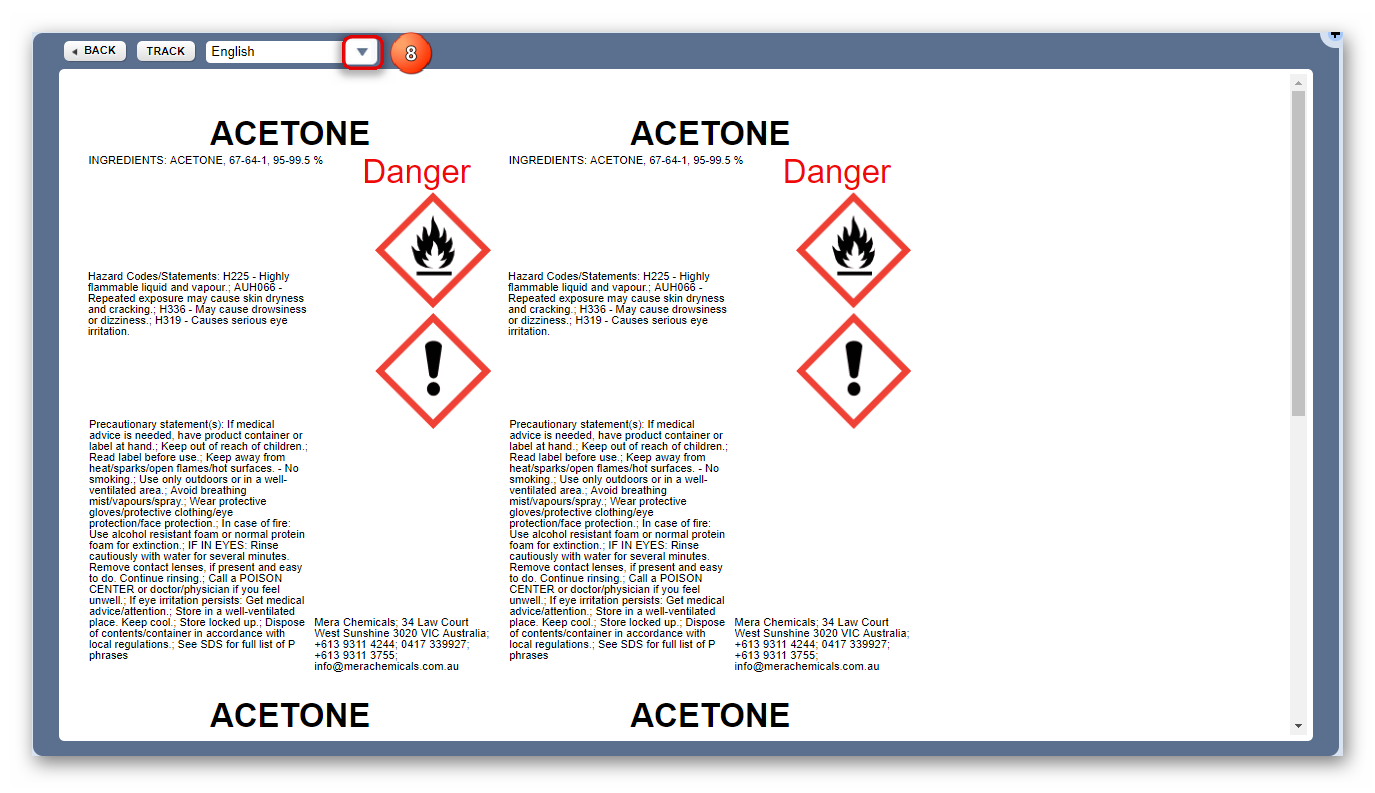
8. The Label document will be displayed on screen. Select the language drop-down arrow and set the Language to render the Label content in another language.
Was this article helpful?
That’s Great!
Thank you for your feedback
Sorry! We couldn't be helpful
Thank you for your feedback
Feedback sent
We appreciate your effort and will try to fix the article