Folder Edit | Task Attribute |
Rename | Users can rename a folder by typing a new name at any node if the appropriate permission is granted by the administrator. |

The following steps demonstrate how to rename a single folder to a new name.
Steps to Renaming a Folder
Go to the Home module .
.
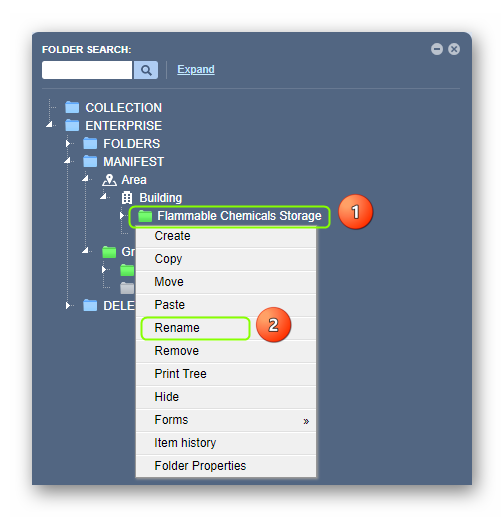
- Right-click on the Storage green folder node.
- Select the Rename option from the drop-down task menu.
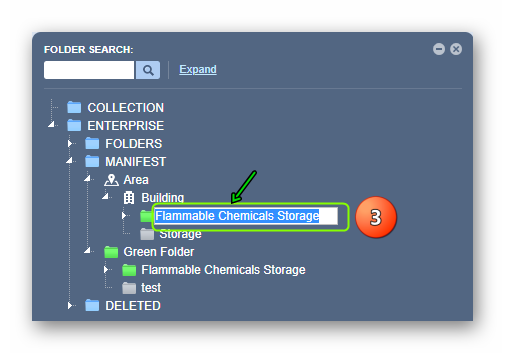
- Click on the folder editable text field and delete the folder name by pressing the keyboard delete button or simply, place the cursor at the end of the folder name and hit backspace on the keyboard until the text field is empty.
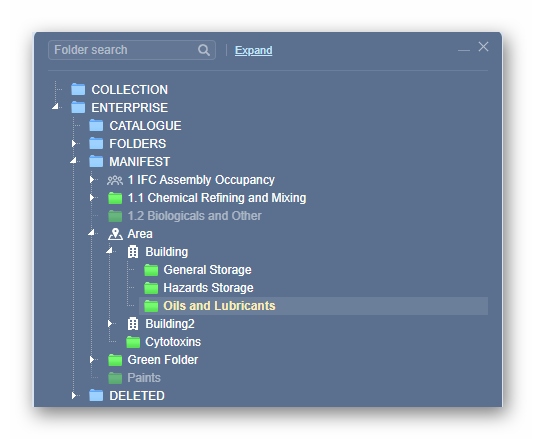
4. Type the folder name in the empty text field, e.g., Oils and Lubricants, and press the enter key on the keyboard or click on an empty area of the user interface to save the record entry.
5. The new folder name is displayed on the folder node.
Was this article helpful?
That’s Great!
Thank you for your feedback
Sorry! We couldn't be helpful
Thank you for your feedback
Feedback sent
We appreciate your effort and will try to fix the article