Common issues to folder permissions may relate to folder being removed or an error occurred. Look at the following case scenarios that may match your situation.
Case 1: Clear Cache or Temporary Files
If such a scenario presents itself, further troubleshooting is required from our end. We may have to remotely view your problem on your pc/laptop or allow us to cobrowse your screen and check your login credentials and permissions.
We recommend pressing the "CTRL" and F5 keys on your keyboard to refresh the program. If the problem persists, come to live chat support to discuss further with a helpdesk team or simply submit a ticket about the issue and request for support by sending an email to helpdesk@chemwatch.net.
Case 2: Folder User Permissions
There are four main types of folder user permission attributes that can be assigned by the administrator of the program to end users of the system. The table below provides a summary description of these permissions concerning the type of access users may have to be able to view and or edit materials in folders.
Permission | Description | User Interface Attribute | Folder View |
Deny | Directories/folder content cannot be accessed by users. | A message displays “to contact the administrator”. | Access denied |
Not Defined
| Directories/folders will not be visible to the user. | The folder assigned this type of permission will be hidden from the user. | Hidden |
Read
| Directories/folder content can be accessed by user but cannot add or copy or move or remove (delete) folders or materials. | Users can view folder content (register of materials) but cannot edit content. | View |
Read-write
| Users can be copy, move, remove (delete) folders, and materials and edit material quantities. | Users can view folder content (register of materials) and edit content (folders, materials and quantities). | View and Edit |


Case 3: Consider Folder Types and their Attributes
Folder Type | Conditions | Attribute |
System | System folder directories are NOT editable by default. |
No edit |
Administrator
| Materials allowed to be stored in this type of folder, users with edit rights will be able to store materials in this folder and when this occurs, it will turn into a green folder. | Edit property |
Storage
| Materials allowed to be stored in this type of folder, users with edit rights will be able to store materials in this folder. | Edit property |
Shop
| Folder type available to all users (Sisot and none-Sisot users), users with access and edit rights to this folder will be able to manage materials in this folder. | Edit property |
Waste
(Waste is designated to 2 categories) |
“Waste – Intermediate Area” and “Waste – Dispatch Area” Available to all users (Sisot and none-Sisot users).
| Edit property
|
“Waste contractors to collect wastes from this site” because it is only applicable for “Waste –Dispatch Area” folders | Edit property
| |
Notes | “Waste – Intermediate Area” will not have the tick box. “Waste folders” will work as a “Storage” | Edit property |
| An empty folder will be colour-coded grey, regardless of the location on the tree. |
|
| Removal of all materials from a folder will make the folder grey, depicting it as an empty folder. |
|




 folder for non-Sisot users.


Case 4: Verify if Folder Right Click Menu Edit Options Display - Create Folder
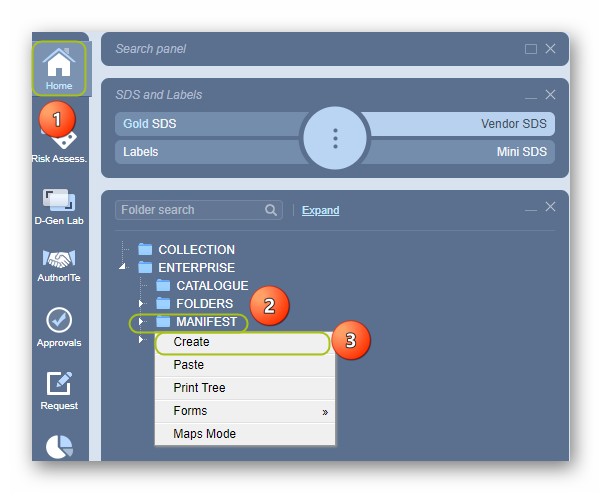
Generally, users who have permission to edit folders will have these folder edit options from the folder click menu shown below.
Steps
- Go to Home module
 .
. - Right click on the manifest system tree directory folder node

- Select the Create from the drop-down task menu
Case 5: Verify if Folder Right Click Menu Edit Options Display - Create, Remove, Rename, etc.
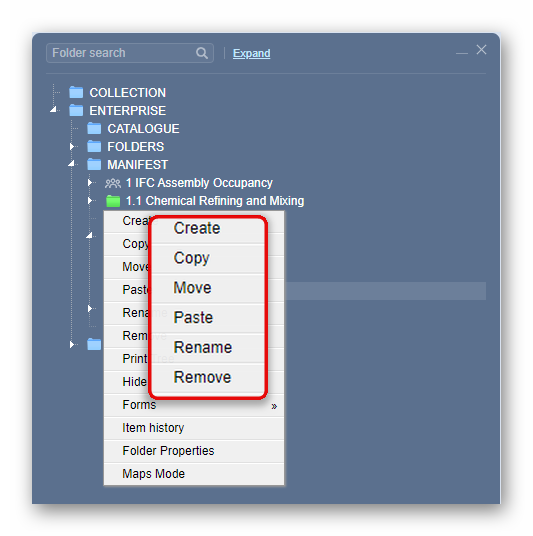
Editing folders is part of folder management. Users who have been granted read-write folder permission will be able to edit folders.
Permission | User Interface Attribute | Folder Node Edit |
Read-write
| User can view folder content (register of materials) and edit content (folders, materials and quantities) |
View and Edit |


The folder edit menu contains specific task options that enables users to create, copy, move, paste, rename, remove and edit folder properties.
Was this article helpful?
That’s Great!
Thank you for your feedback
Sorry! We couldn't be helpful
Thank you for your feedback
Feedback sent
We appreciate your effort and will try to fix the article