Option 1: Expand the folder tree structure
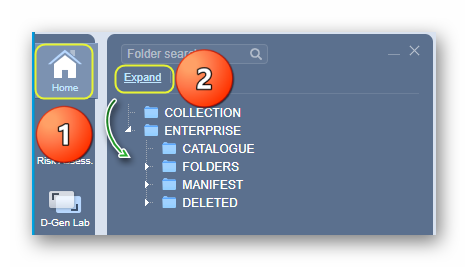
“Searching for a folder” from the folder tree structure can be achieved in two ways. First you can use the “Expand” link or use the folder search function (see next topic). Follow the steps below to “Expand” the tree structure into its parents and child folders assuming that the folder you are after already exists within the tree.
Steps
- Go to Home module
 (if it is not already the default module)
 - Press the Expand link from the top area of the folder panel.
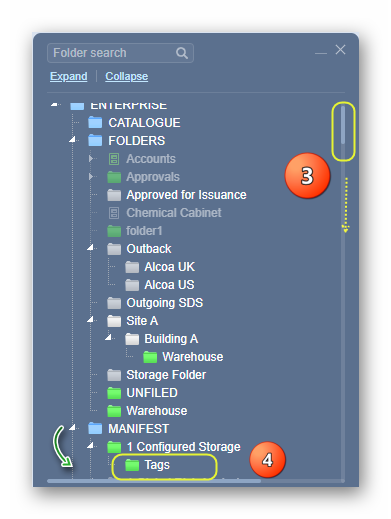
3. Find the folder by its name or scroll down the folder tree by using the mouse roller if there are many folders.
4. Select the Folder Name once it has been located to view the full list of materials/cat names.
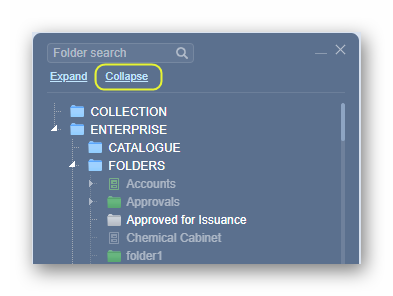
5. Select the Collapse link to back to the default folder tree view.
Option 2: Search for the folder by name
The next steps illustrate how to “Search for a folder” from the folder search function. Follow the steps below to “Search” the tree structure” assuming that the folder you are after already exists within the tree.
Steps
- Go to the Home module
 .
. - Click the search text field from the top area of the folder panel and type the name of the folder.
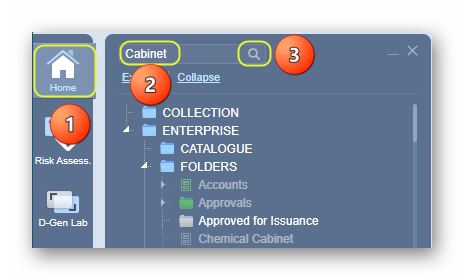
3. Press Enter from the keyboard or select the search button to look for the folder from within the folder structure.
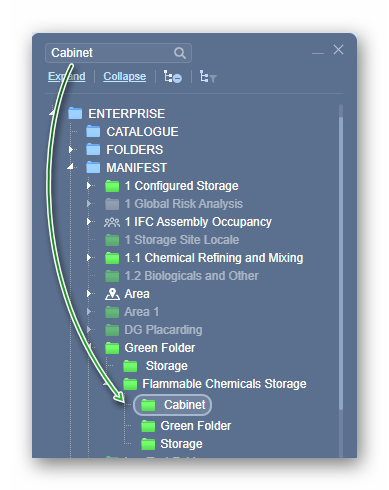
4. If the folder is located (tracked), it will get highlighted as depicted below.
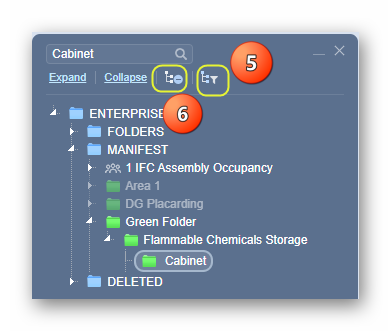
5. To toggle only the tracked folders, use the tracking toggle icon to display only those found folder locations.
6. To remove active tracking, click on the track icon with the minus sign.
Was this article helpful?
That’s Great!
Thank you for your feedback
Sorry! We couldn't be helpful
Thank you for your feedback
Feedback sent
We appreciate your effort and will try to fix the article