Folder Edit | Task Attribute |
Remove
| Users can remove (delete) a folder from any node. If a folder is deleted, it is automatically moved from its current location node into the system Deleted Directory folder given that the user has the right permission. |

The following steps show how to remove (delete) a single folder.
Steps to Removing (Deleting) a Folder
Go to the Home module  (if it is not already the default module).
- Right-click on the Storage green folder node.
- Select the Remove option from the drop-down task menu.
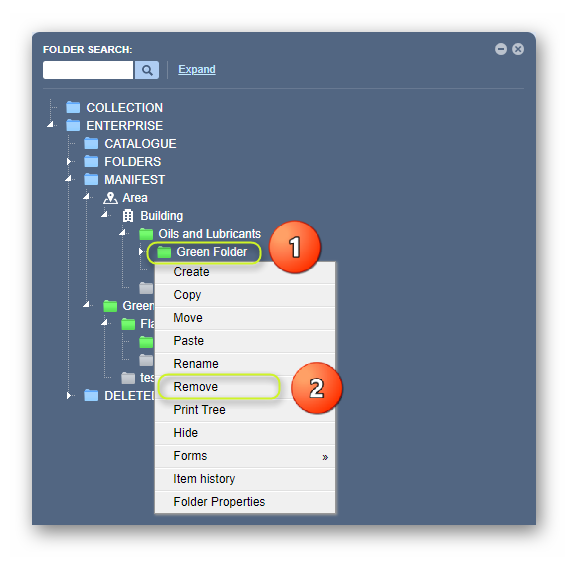
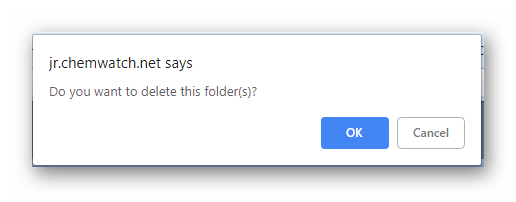
3. Click on the OK button on the resulting message that appears in the middle top area of the user interface to confirm the deletion of the selected folder.
4. The folder has been deleted and the record is archived in the system DELETED directory  , which also keeps the date and time stamp when any folder was deleted. Click the expand arrow
  on the Deleted Directory to list the deleted items.
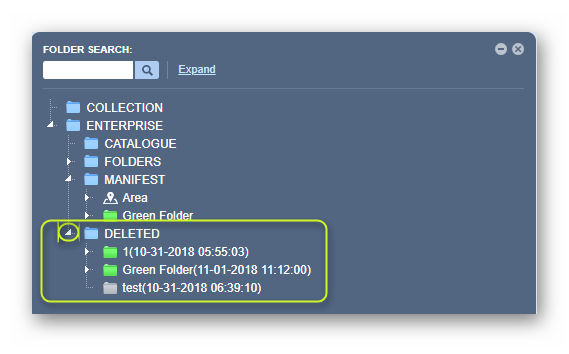
A confirmation message is displayed in the top middle area of the user interface. Once the folder has been removed from its initial folder node, it will be placed in the system’s DELETED directory within the tree structure.

Was this article helpful?
That’s Great!
Thank you for your feedback
Sorry! We couldn't be helpful
Thank you for your feedback
Feedback sent
We appreciate your effort and will try to fix the article