Incompatibility Report
The “Incompatibility Report” is a summary of storage incompatibility based on dangerous goods classes and packing groups. Each chemical in the store is checked in combination with all other chemicals for any incompatibilities. This logic includes all subsidiary nodes if the report is generated from a parent folder. The report provides segregation guidance notes for incompatible goods through an information icon tag  . There are three primary categories used for the incompatibility conclusion.
- Compatible - chemicals can be stored together with other chemicals in store
- Incompatibilities may exist - provided the chemicals falls under the same class
- Segregation - chemicals must be separated by a specific distance apart from each other
The following steps illustrate ‘how to derive a specific hazard report based on the incompatibilities of dangerous goods.
Steps to Generate an Incompatibility Report
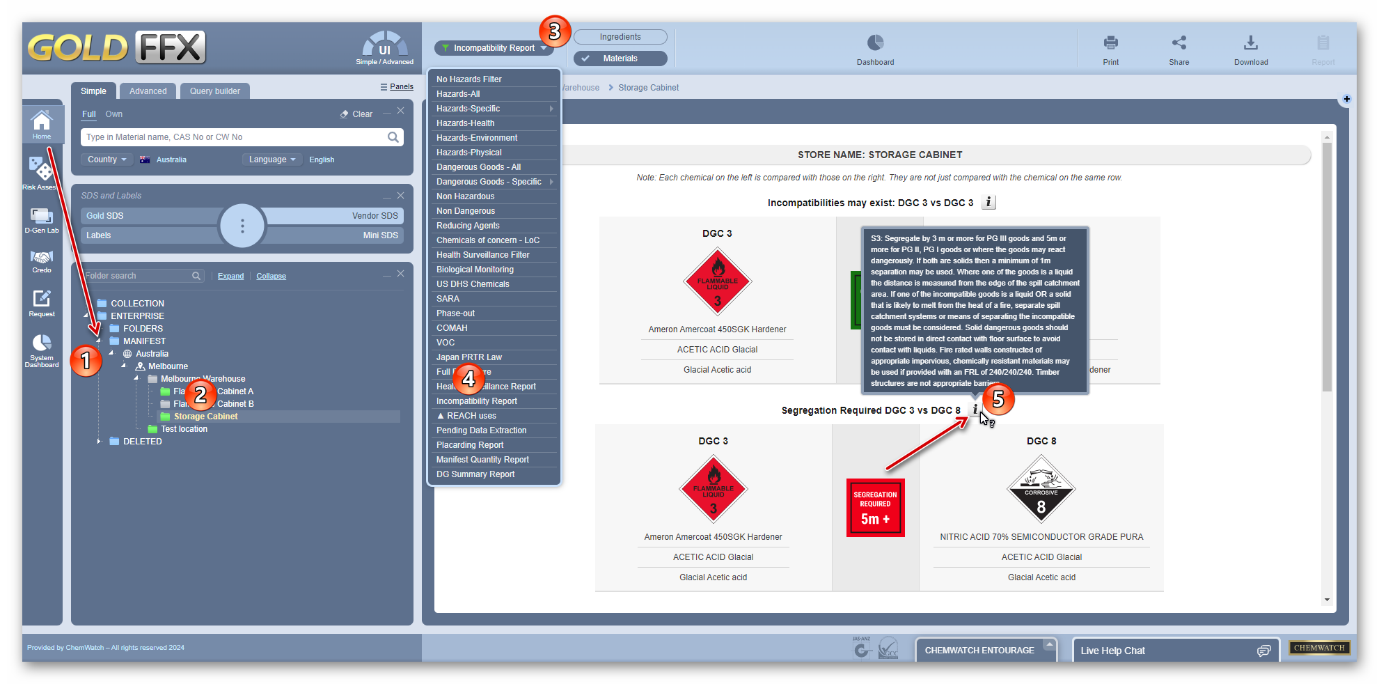
Open the Home module button .
.
- Expand
 Manifest directory nodes to view the folder location.
 - Press the Folder name. Take note that the manifest list grid defaults to Cat Name view mode.
- Click the Hazards drop-down arrow from the Hazards Filter
- Select the Incompatibility Report option from the hazard’s filter menu.
- Note that this list is filtered to show only those products that classified as dangerous goods or chemicals. The filtered list is shown as an Incompatibility report. The information icon
 provides the details on segregation, and compatibility status.
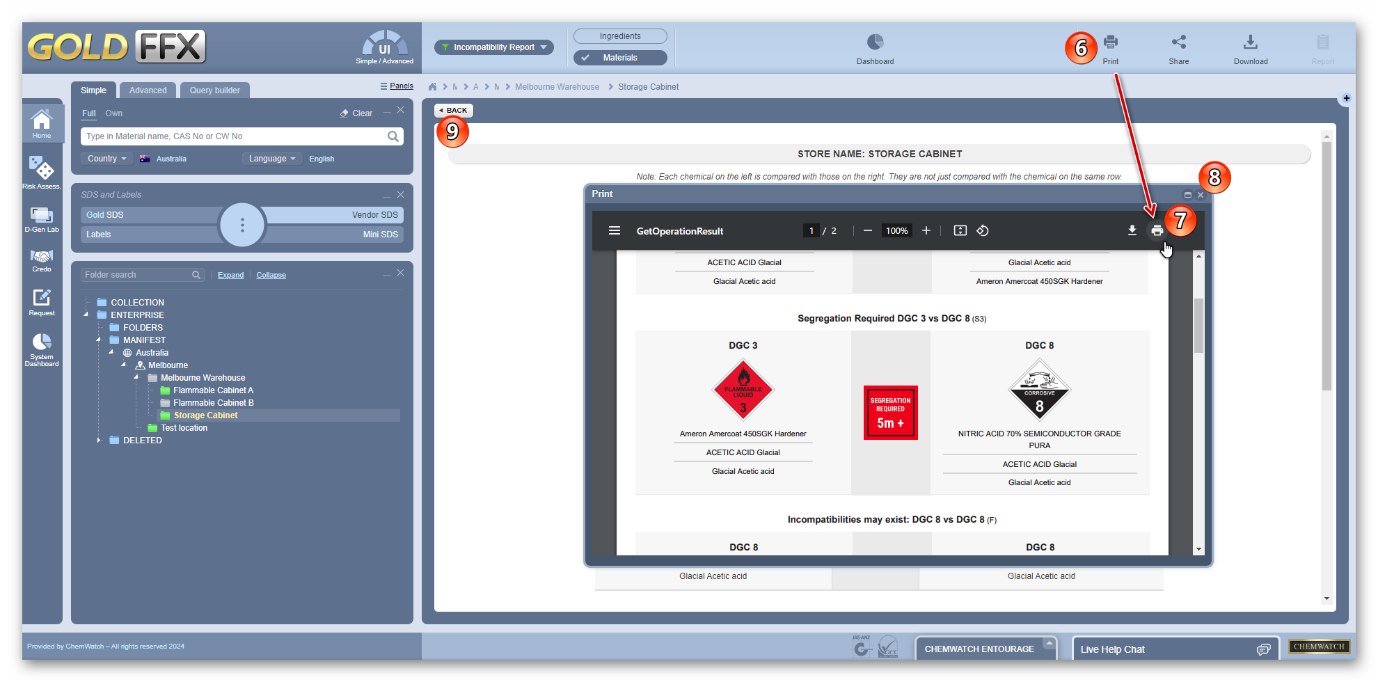
6. Choose any of the Print , Share or Download buttons. Select the Print button to generate the Incompatibility report. format.
7. Press the Print or Download buttons from the acrobat reader to print or download report.
Note that in this generated pdf report document, the chemicals are compared with those on the right, they are not just compared with the chemicals on the same row.
8. Click the close button  on the top right-hand corner to close the print window.
9. Click the Back button  to go back to the products list.
Was this article helpful?
That’s Great!
Thank you for your feedback
Sorry! We couldn't be helpful
Thank you for your feedback
Feedback sent
We appreciate your effort and will try to fix the article