Hazards Filter
Safety and compliance require that persons using chemicals at the workplace must obtain a hazardous chemicals register, identify all those materials that may cause cancer (carcinogens), hazardous substances to human health, environmental hazardous substance, embryotoxins, reprotoxins, physical hazardous substances, dangerous goods and many more. The system allows users to filter out those hazardous chemicals that fall under that category by using the Hazards Filter.
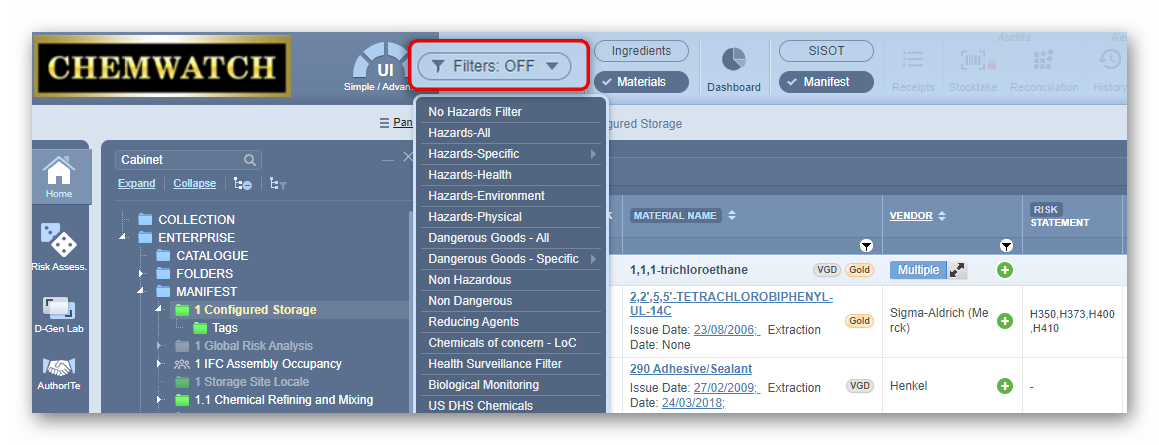
Steps to Filter Materials List by Hazards-Specific Carcinogens
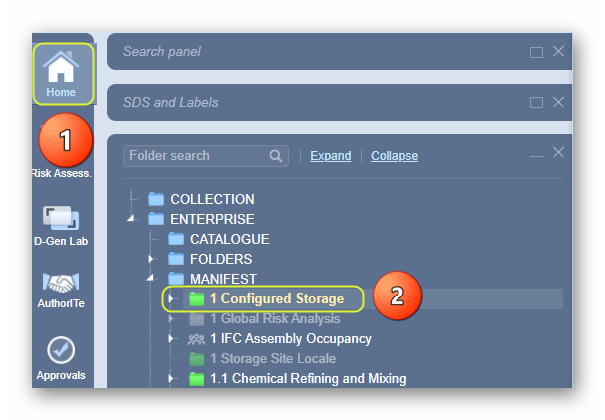
- Open the Home module
 .
. - Expand
 Manifest directory nodes to view the folder location.
 - Press the Folder name. Take note that the manifest list grid defaults to Cat Name view mode.
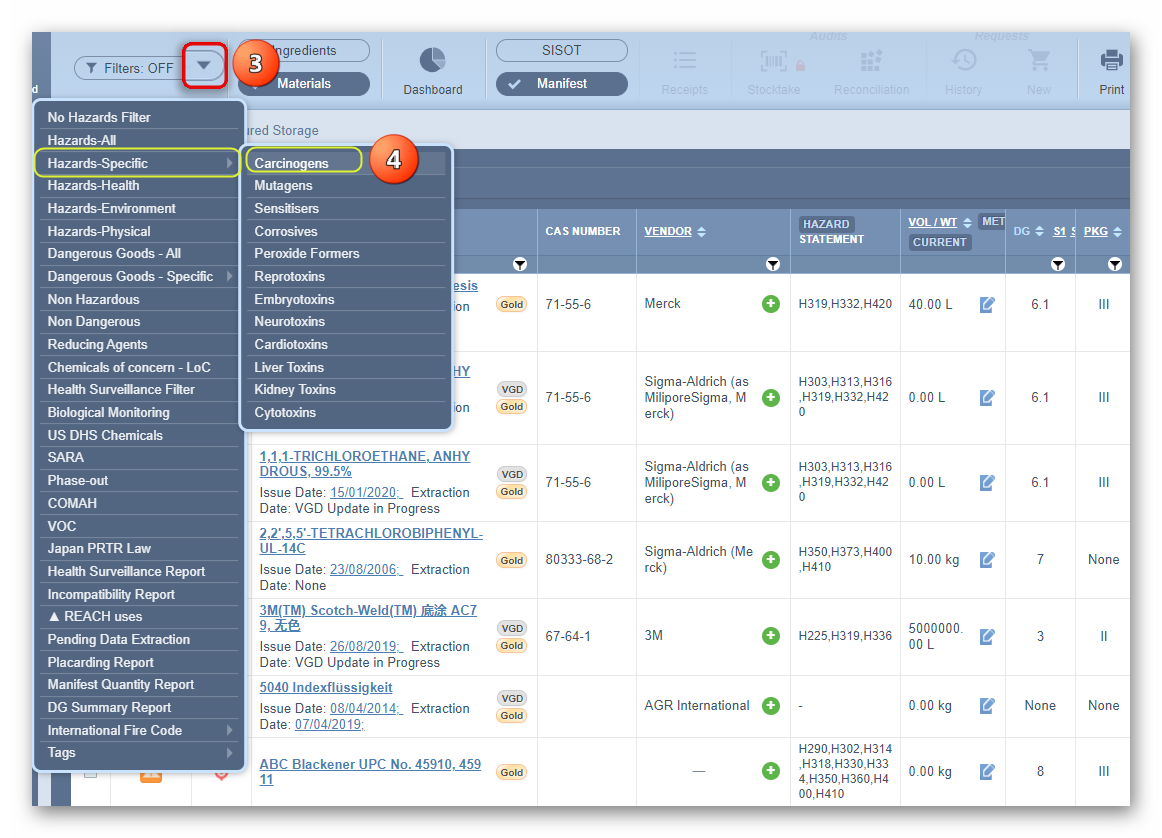
4. Click the drop-down arrow from the “Filters: OFF” button
  .
.
5. Select the Hazards-Specific Carcinogens option from the hazard’s filter menu.
Note that this list is filtered to show only those products that are classified as carcinogenic chemical products. The hazard column displays the colour-coded icon(s) as per hazard rating and the hazard statement column shows the hazard classification codes (H Codes as per GHS) for each line item. The filtered list shows only 1 carcinogen identified.

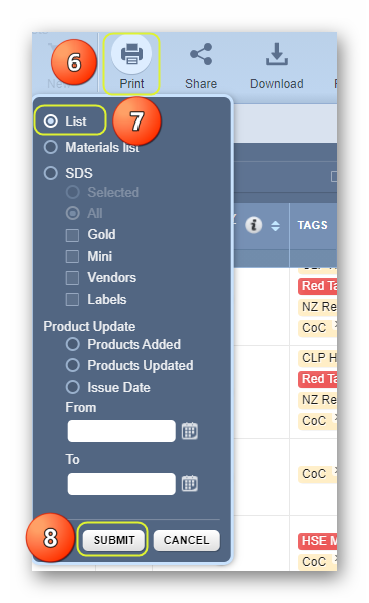
6. Choose any of the Print, Share or Download buttons. Select the Print button 
to generate the hazards-all report.
7. The List radio button is the default selection from the print menu.
8. Press the Submit button to generate the report document in  format.
9. Press the Print or Download buttons from the  reader to print or download report.
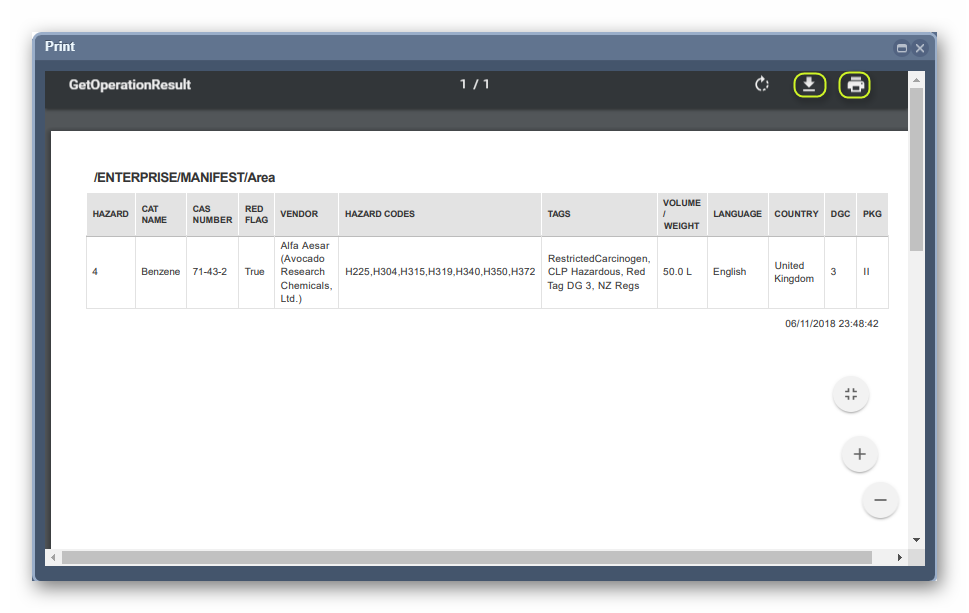
Note that in this generated pdf report document, the hazard column has converted the hazard colour-coded icon into the corresponding Chemwatch hazard rating number for the line item. Close the print window.
10. Click the drop-down arrow from the “Filters: OFF” button
and select the “No Hazards Filter” option to go back to the products list (this action closes the Hazards Filter functionality).
Was this article helpful?
That’s Great!
Thank you for your feedback
Sorry! We couldn't be helpful
Thank you for your feedback
Feedback sent
We appreciate your effort and will try to fix the article