Steps to Filter Materials List by DG Class
Open the Home module  .
.
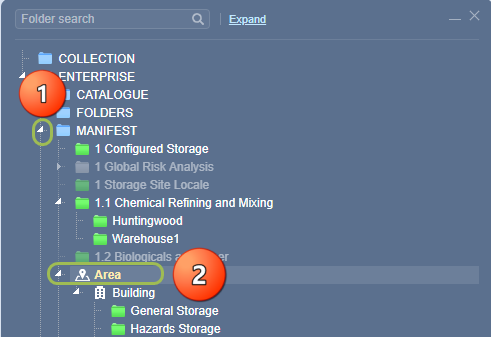
- Expand
 Manifest directory nodes to view the folder location.
 - Press the Folder name. Take note that the manifest list grid defaults to Cat Name view mode.
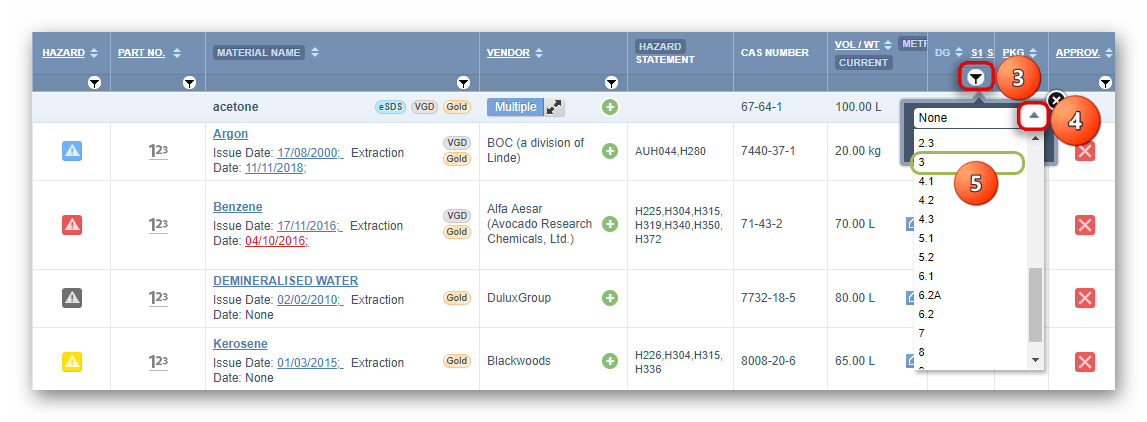
3. Click the DG column filter icon .
.
4. Click the drop-down arrow from the DG filter panel.
5. Select the DG Class from the filter menu, e.g., DG 3.
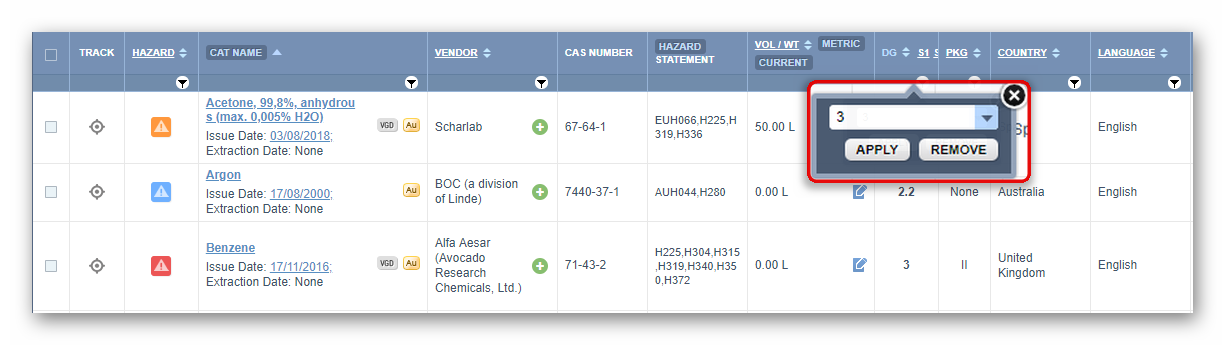
6. Select the Apply button from the hazard filter panel to filter the list.
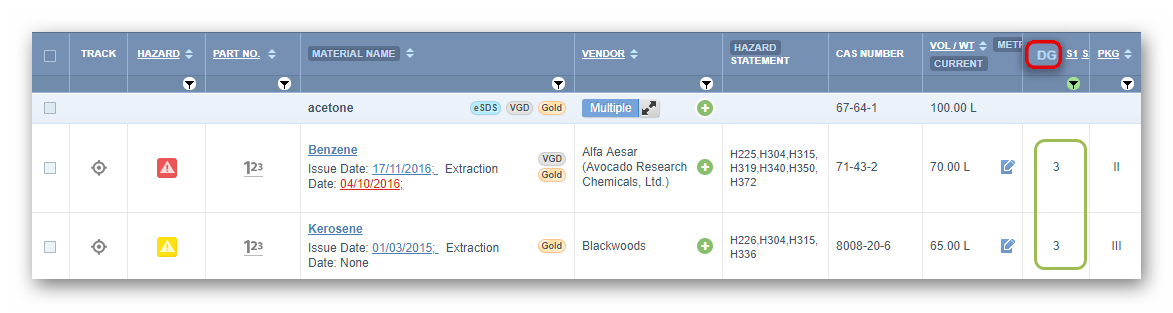
7. The filtered list shows the dangerous goods classified as DGC 3 (Flammables) located in the selected folder.
8. Choose any of the Print, Download or Share buttons. Select the Print button .
.
to generate the report document for the flammable dangerous goods list in  format.
Use the active filter icon  and press the Remove button to close the filtered list and go back to the Cat Name original list.
Was this article helpful?
That’s Great!
Thank you for your feedback
Sorry! We couldn't be helpful
Thank you for your feedback
Feedback sent
We appreciate your effort and will try to fix the article