The steps below show how to perform data extraction in the risk assessment module for a chemical that does not have any classification data extracted.
Steps: Perform a User Defined Data Extraction Task for a Chemical without Gold/VGD Data
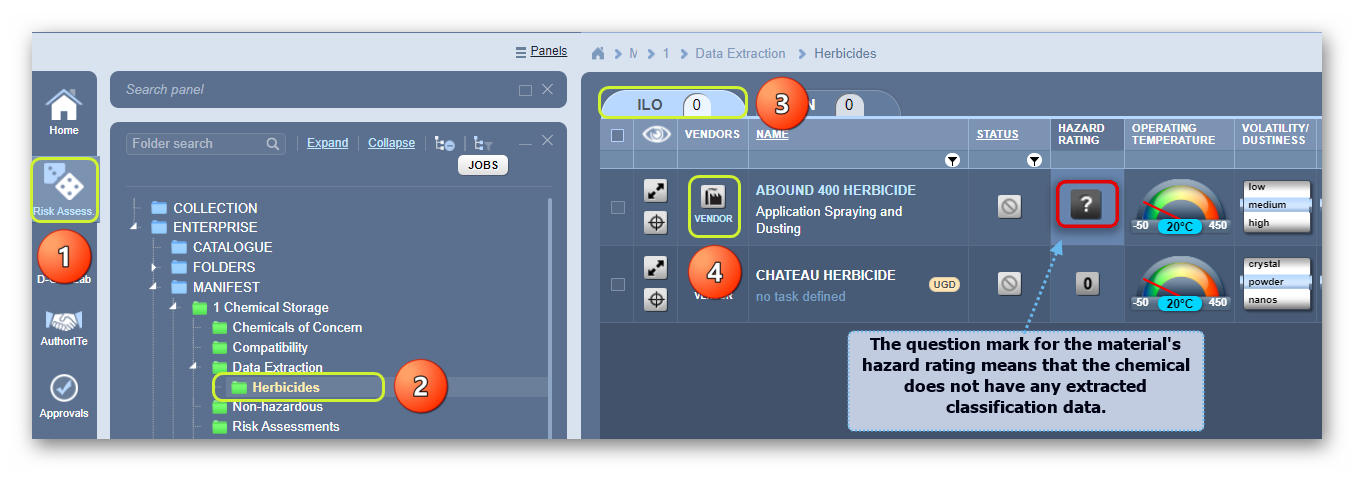
- Select the Risk Assessment module button
 .
. - Click on a Folder name (green folder with materials).
- Select the risk assessment mode (ILO- Health or UN –Dangerous Goods tab). In this exercise,
 (Health) risk assessment is the “active” mode by default.
 - Click on the Vendor icon
 alongside the chemical name with the hazard rating question mark icon
  .
.
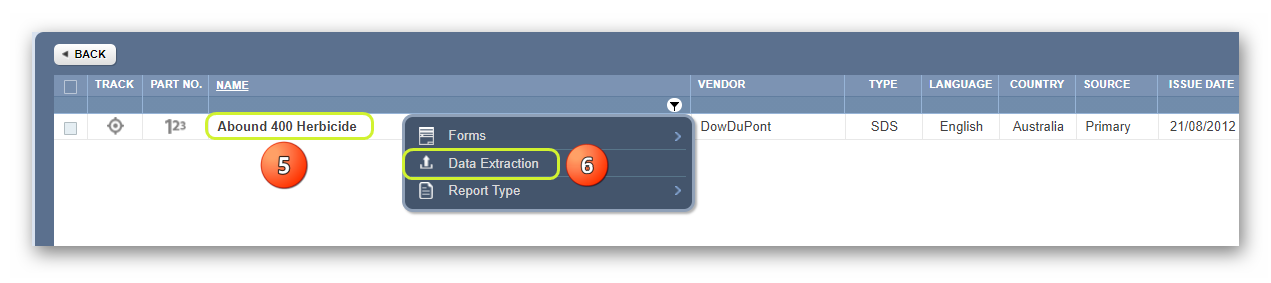
5. Mouse right-click on the document (SDS) name to open the context menu.
6. Click on the “Data Extraction”  option from the menu.
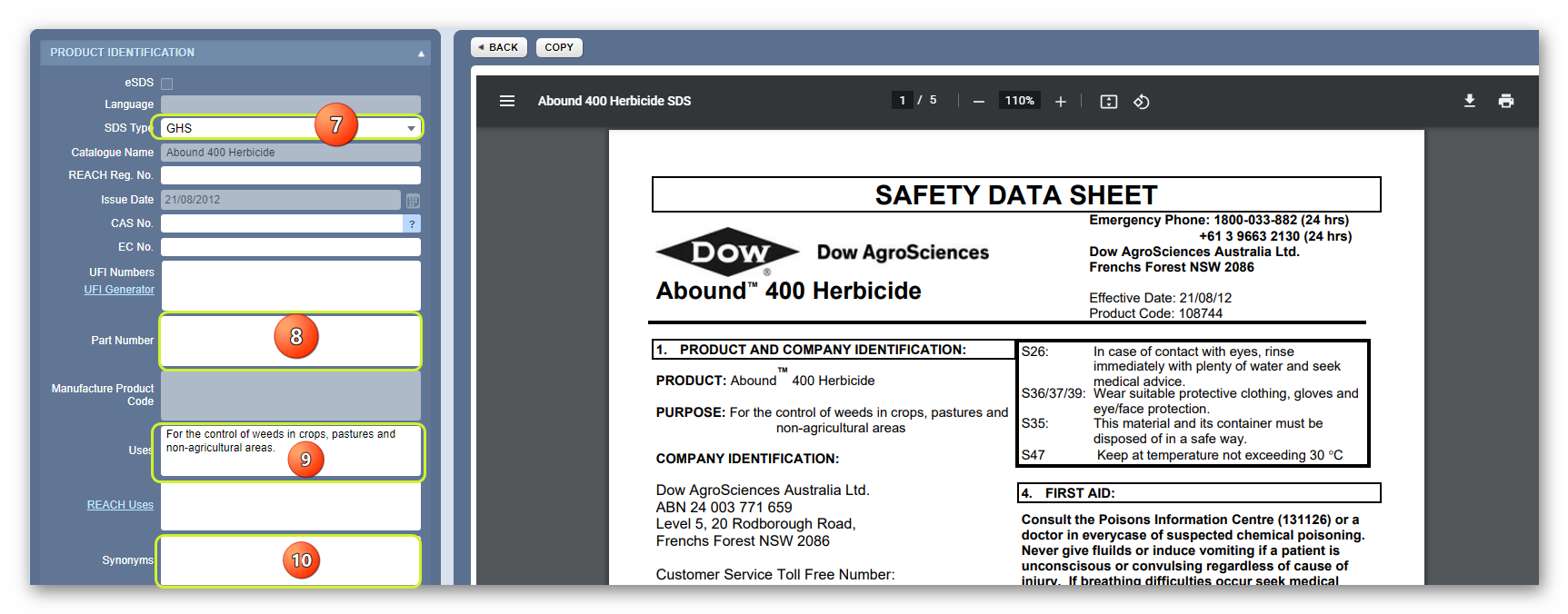
7. The data extraction tool will load the CREDO form defaulting to Product Identification tab and render the Vendor SDS for the material. Select the dropdown arrow for SDS type and choose the GHS option from the list.
8. Type the Part Number in the part number free text field (if available in the SDS). Note that this field is optional.
9. Type the Uses details in the uses free text field. Note that the use information is optional, however it is normally available in section 1 of the product’s SDS.
10. Type the Synonyms for this product in the synonyms text field. Note that this field is optional; however, synonyms are available in section 1 of the product’s SDS.
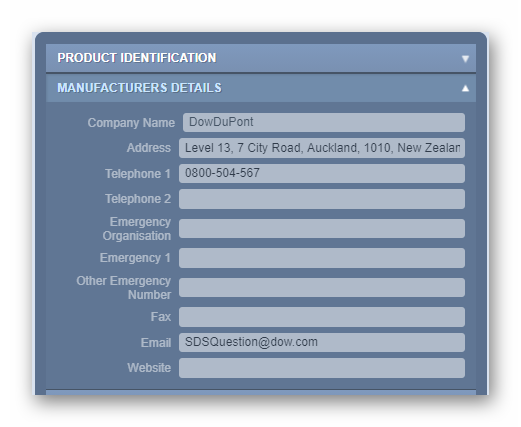
11. Click on the Manufacturers Details tab to check if vendor details are automatically filled from the database.
12. Click on the Credite Posteri tab to enter the respective ingredient(s) of the product’s composition. Section 3 of the product’s SDS will have the ingredient(s) and composition information to use in the Credite Posteri fields to look up for each ingredient and assign the respective proportion %. However, in this exercise, the information is available in section 2 of the SDS.
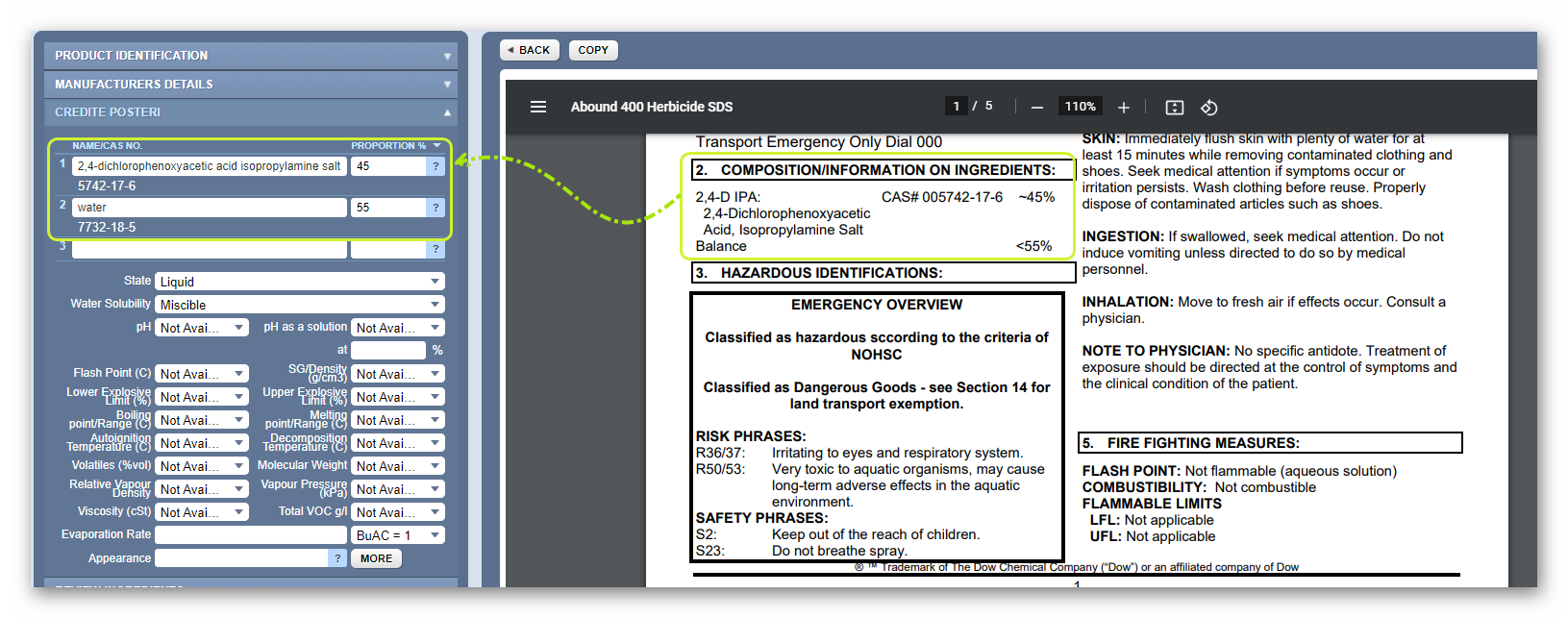
The next steps involve searching for these ingredients in the Chemwatch database using the Credite Posteri ingredients fields.
13. Type the Ingredient name for a quick look up and if available in the system, then click on the dropdown listed material name that matches the respective CAS number if available or simply enter the CAS number of the ingredient if available.
14. Select the name of the ingredient from the autocomplete list. Repeat this step for the next ingredient.
15. Enter the Ingredients proportion % in the Proportion % fields respectively.
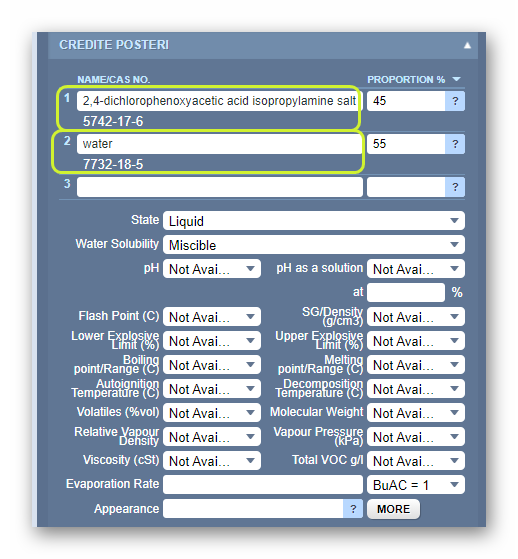
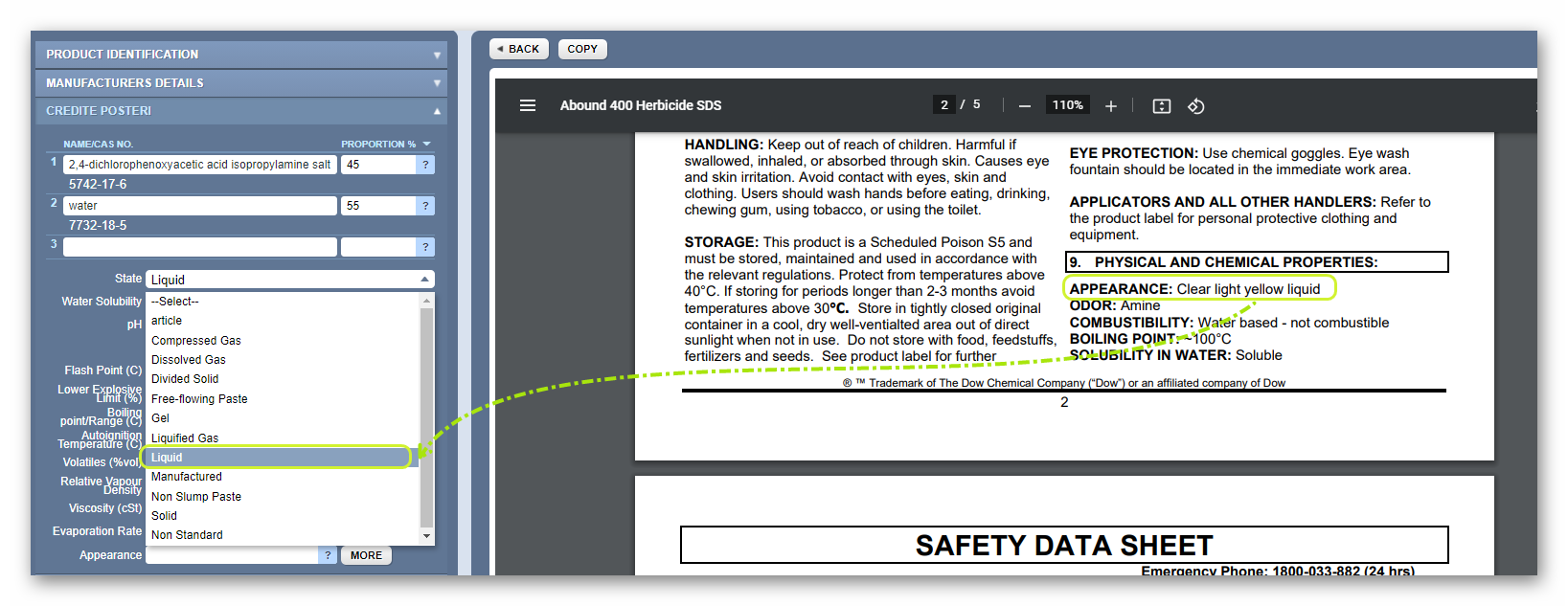
16. Assign the physical State of the substance; solid, liquid, gas; water solubility, etc. where information is available in the product’s SDS. Other specific data may be ignored if not available in the SDS or are not necessarily relevant when creating a mixture, such as pH, viscosity, relative vapour density, etc. In this exercise, the product’s SDS shows that the appearance of the product as “Clear light-yellow liquid”, which means it’s a liquid and hence we assign the physical state as “Liquid”.
17. Click on the Review Ingredients tab to check if the applicable classification criteria are set to GHS (CLP) instead of CandL for each ingredient. The GHS (CLP) switch must be turned ON (green) to match the product’s SDS classification as GHS in section 2. Check the respective GHS hazard codes generated by the system versus the ones that are shown in section 2 (Hazards Identification) of the product’s SDS. In this exercise, the product’s SDS hazard identification is in section 3.
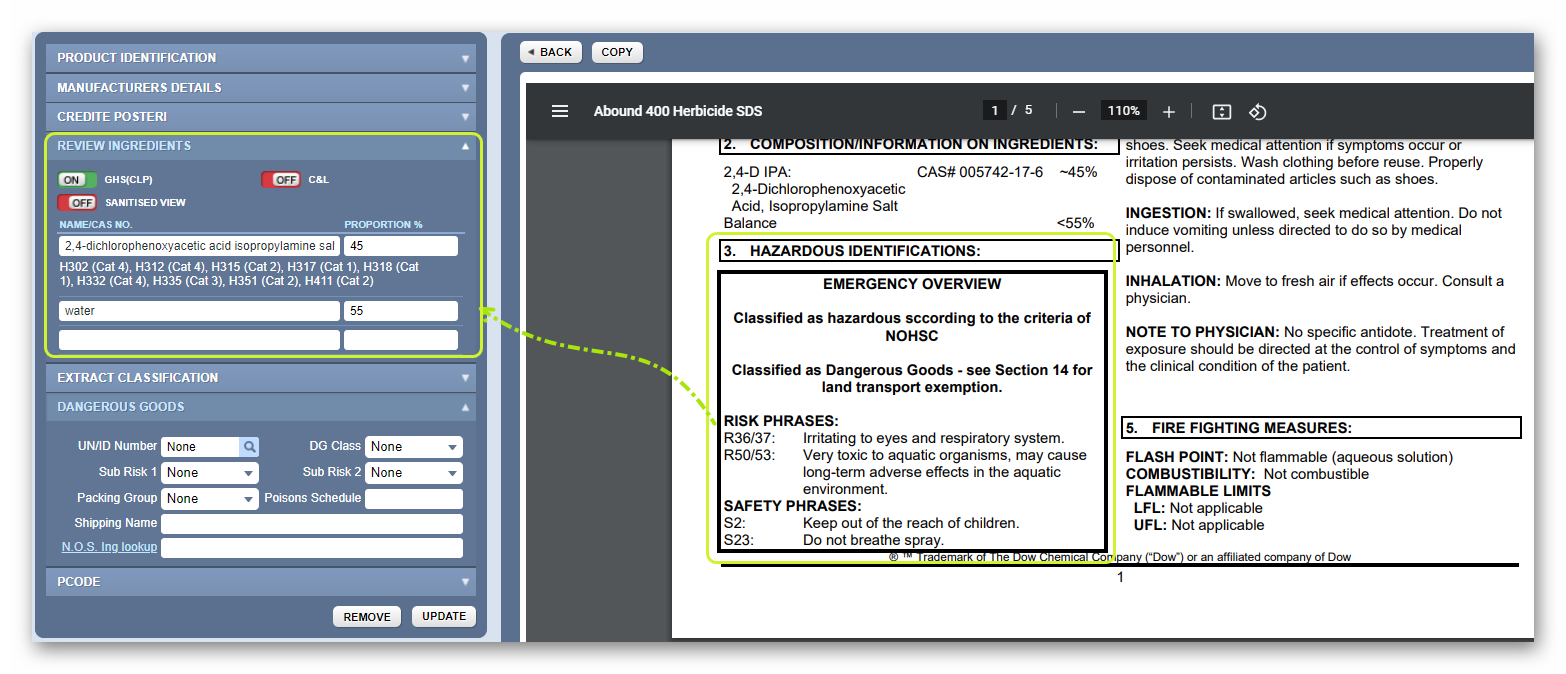
If the hazard codes and statements match, then there is no need to add any hazards.
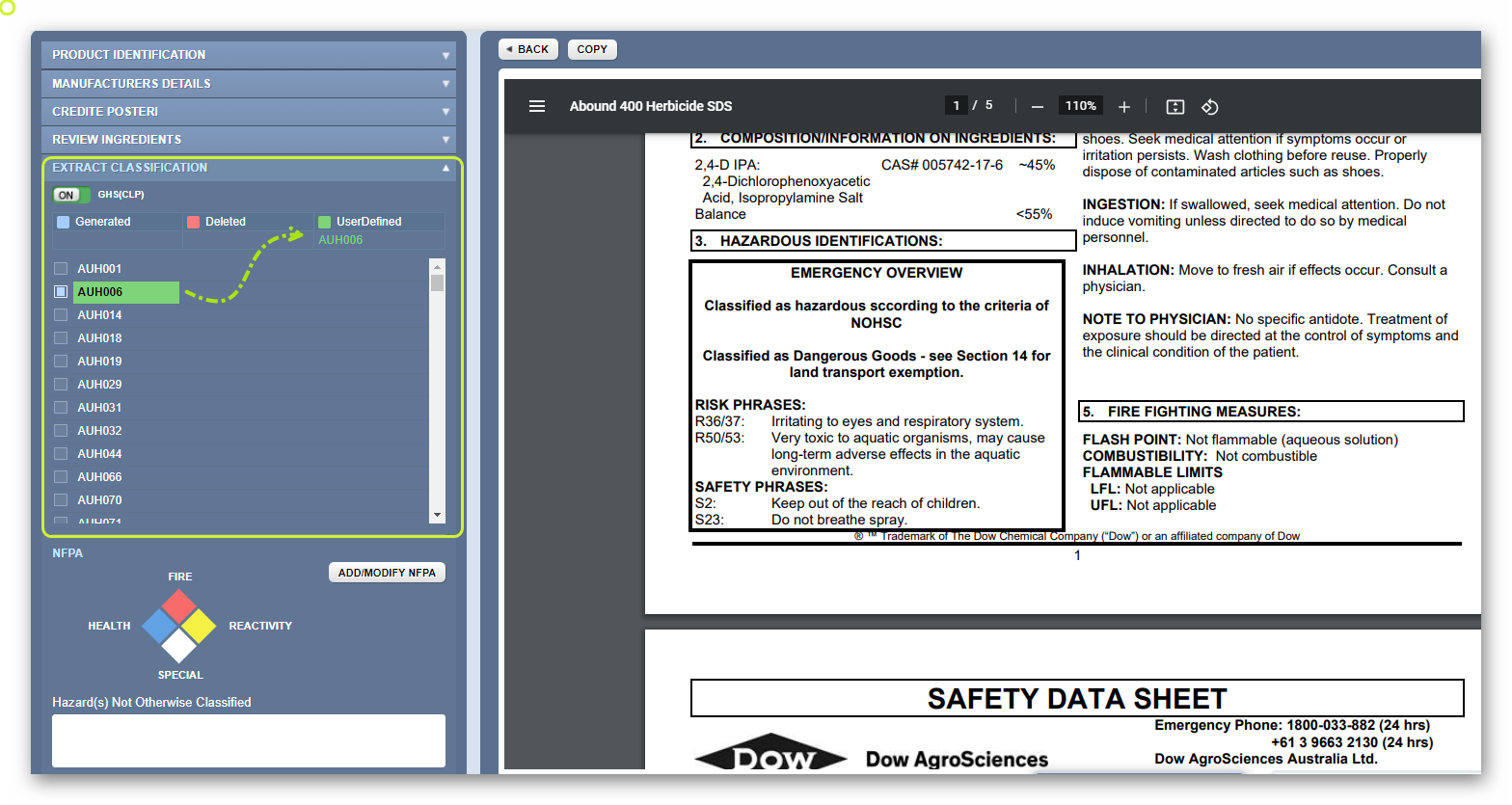
18. Click on the Extract Classification tab to assign any extra applicable classification codes. In this exercise, there are no extra hazard codes to assign. If there were, use the hazard checkbox(es) to select respective hazard codes and these would appear as “UserDefined” as shown below. Note that HNOC is not applicable for Australian SDS and NFPA modification is also not applicable.
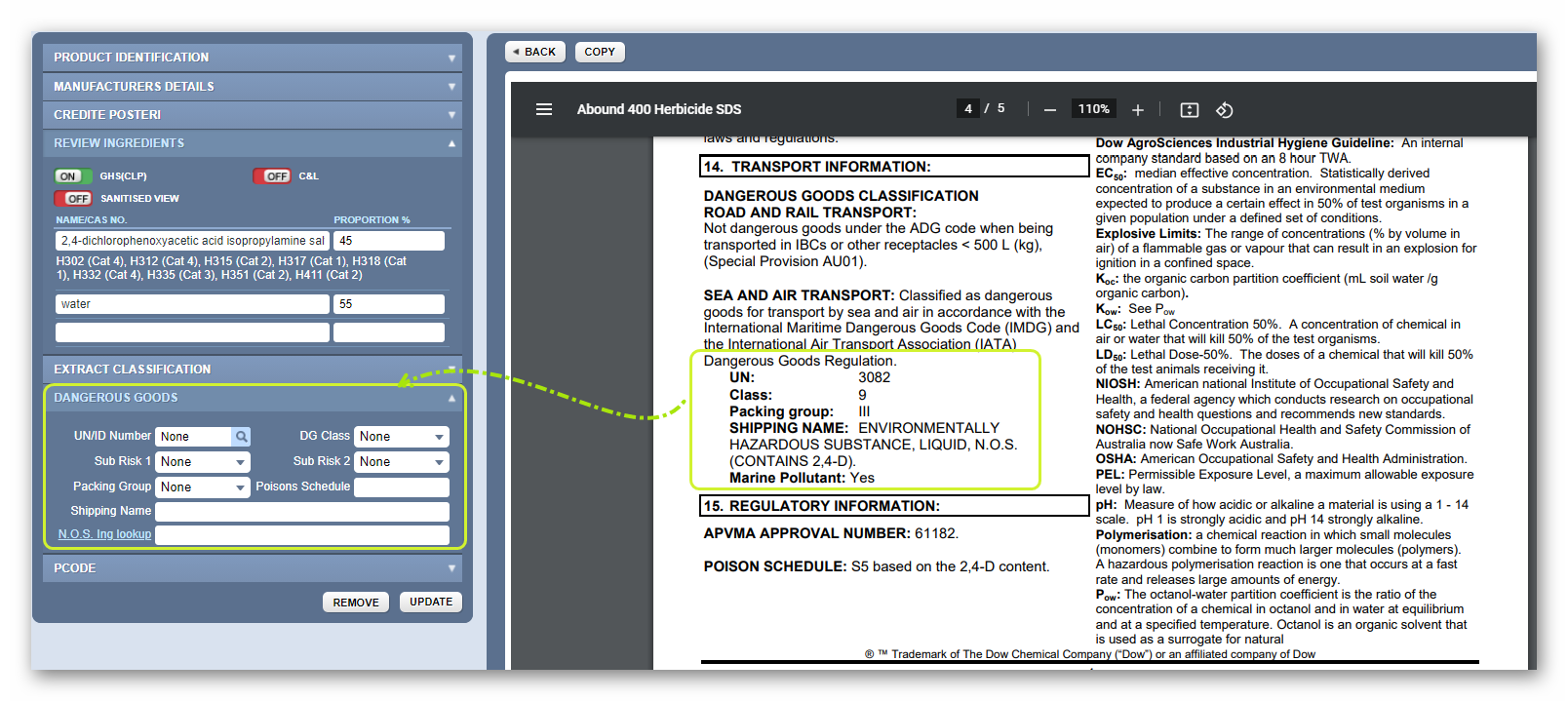
19. Click the Dangerous Goods tab to enter the DG classification. Note that this information is available in section 14 of the product’s SDS. In this exercise, the product is classified as miscellaneous in accordance with the ADG code 7, Dangerous Goods Class 9. The main classification information available on the SDS is as follows:
UN number | UN proper shipping name | Dangerous Goods Class | Packing group |
3082 | ENVIRONMENTALLY HAZARDOUS SUBSTANCE, LIQUID, N.O.S. CONTAINS 2,4-D | 9 | III |
20. Type the UN/ID Number as shown in the SDS, e.g., 3082.
21. Click the Look up icon (magnifying glass) to check for suggestion of DG classification data. In accordance with the information provided in the SDS, this product is classed as DGC 9, Packing Group III.
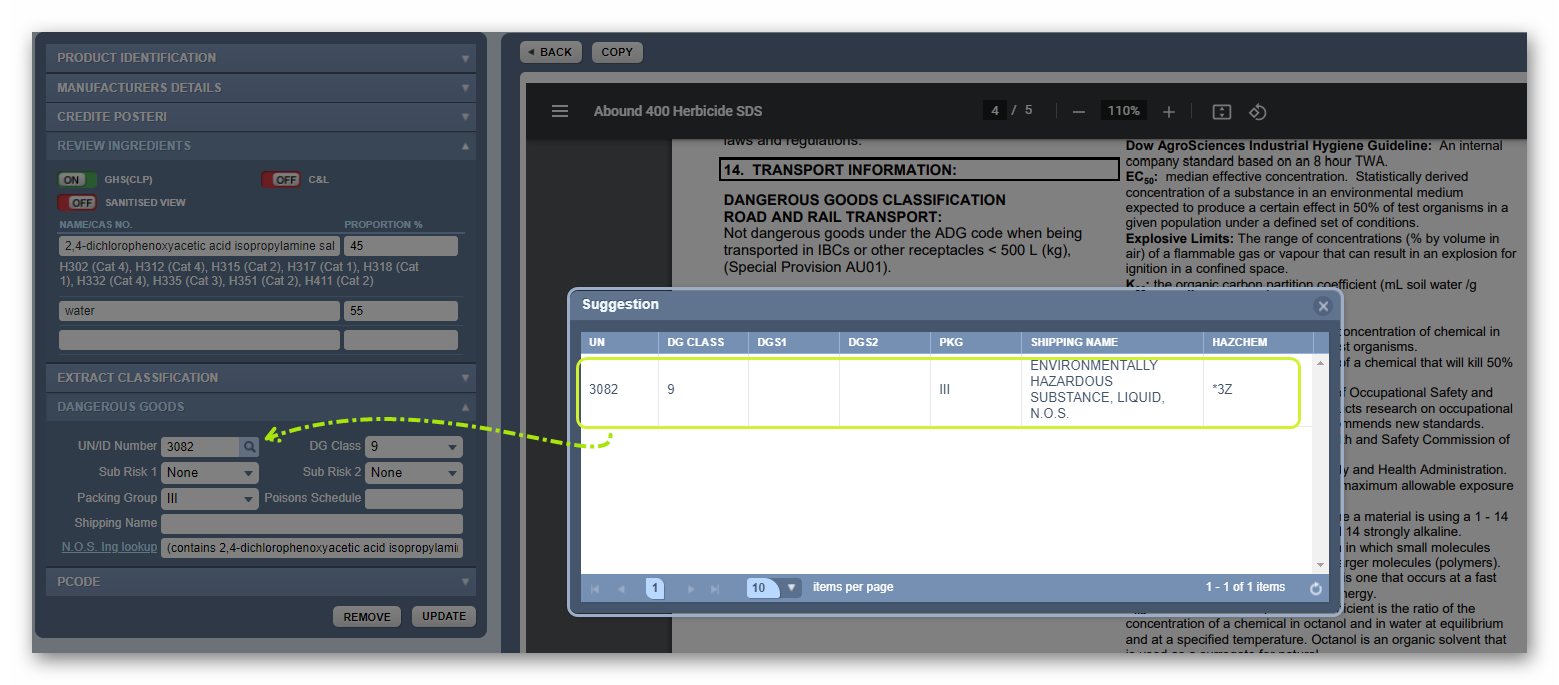
22. Click on the row with matching classification data from the Suggestion window and close the confirmation window.
Note that the DG classification form fields will be automatically populated with the applicable data. Use the N.O.S. Ing.lookup link to choose the respective shipping name (this must match the product’s classification information on the SDS.
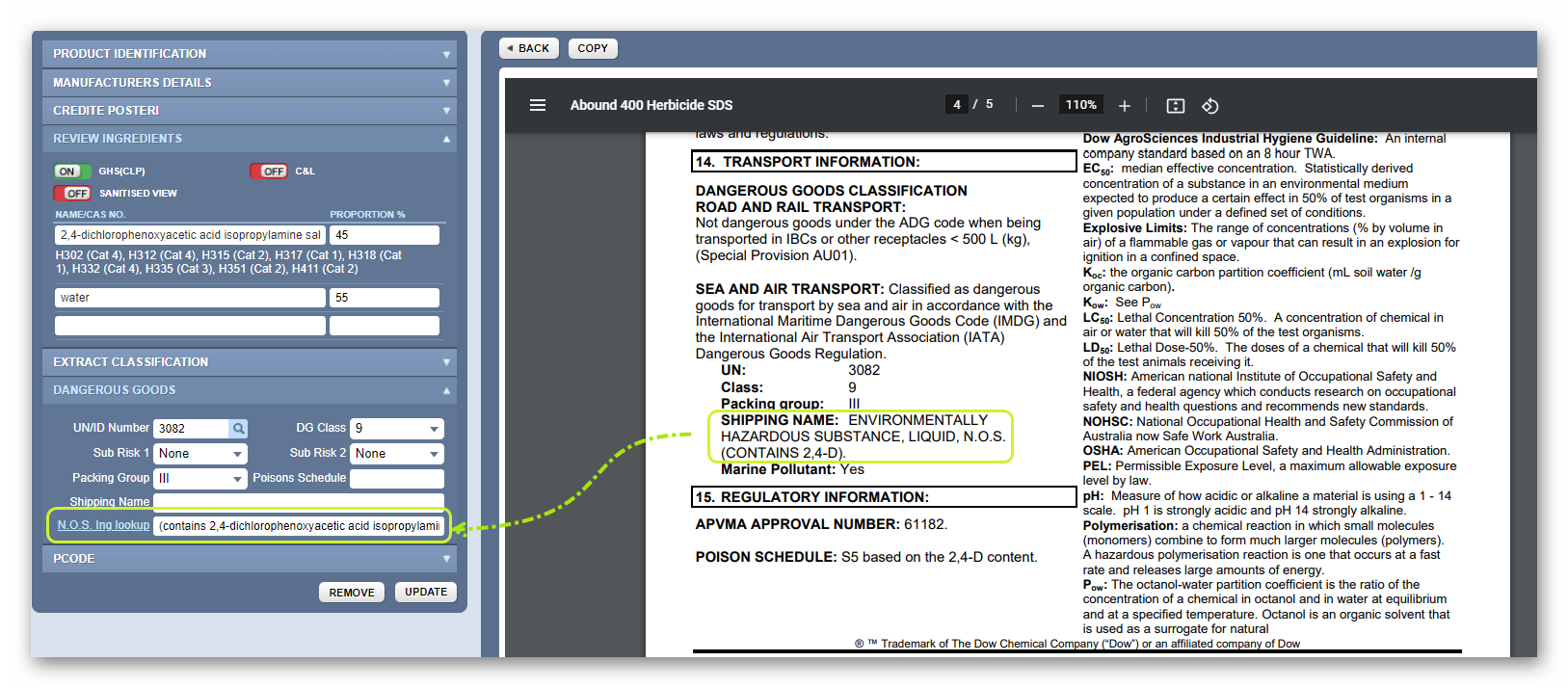
Once the shipping name has been identified, click the OK button and the information will be displayed on the respective field.
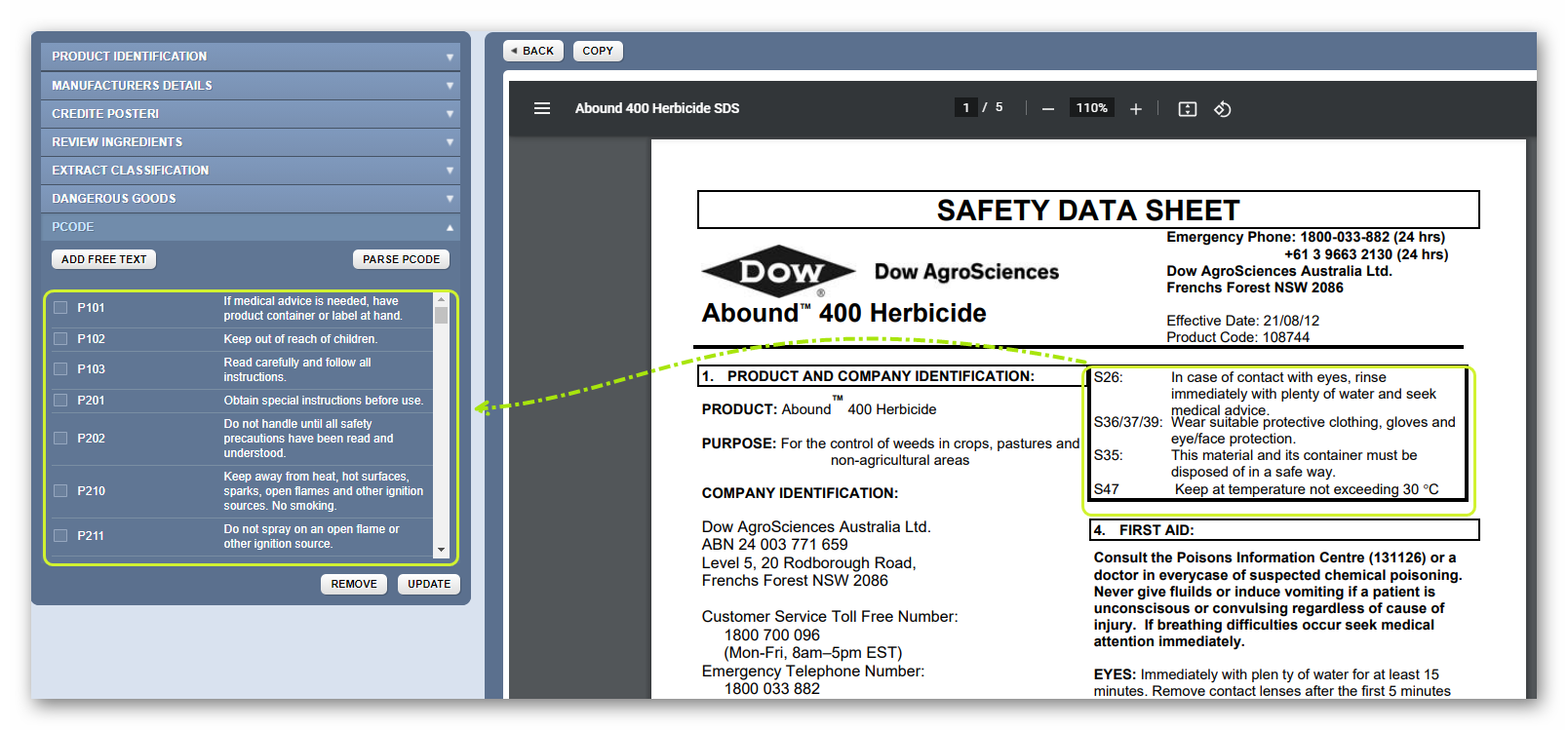
23. Click on the PCODE tab. Choose the appropriate “Precautionary Code/Statements” checkbox(es) by referring to section 2 of the product’s SDS.
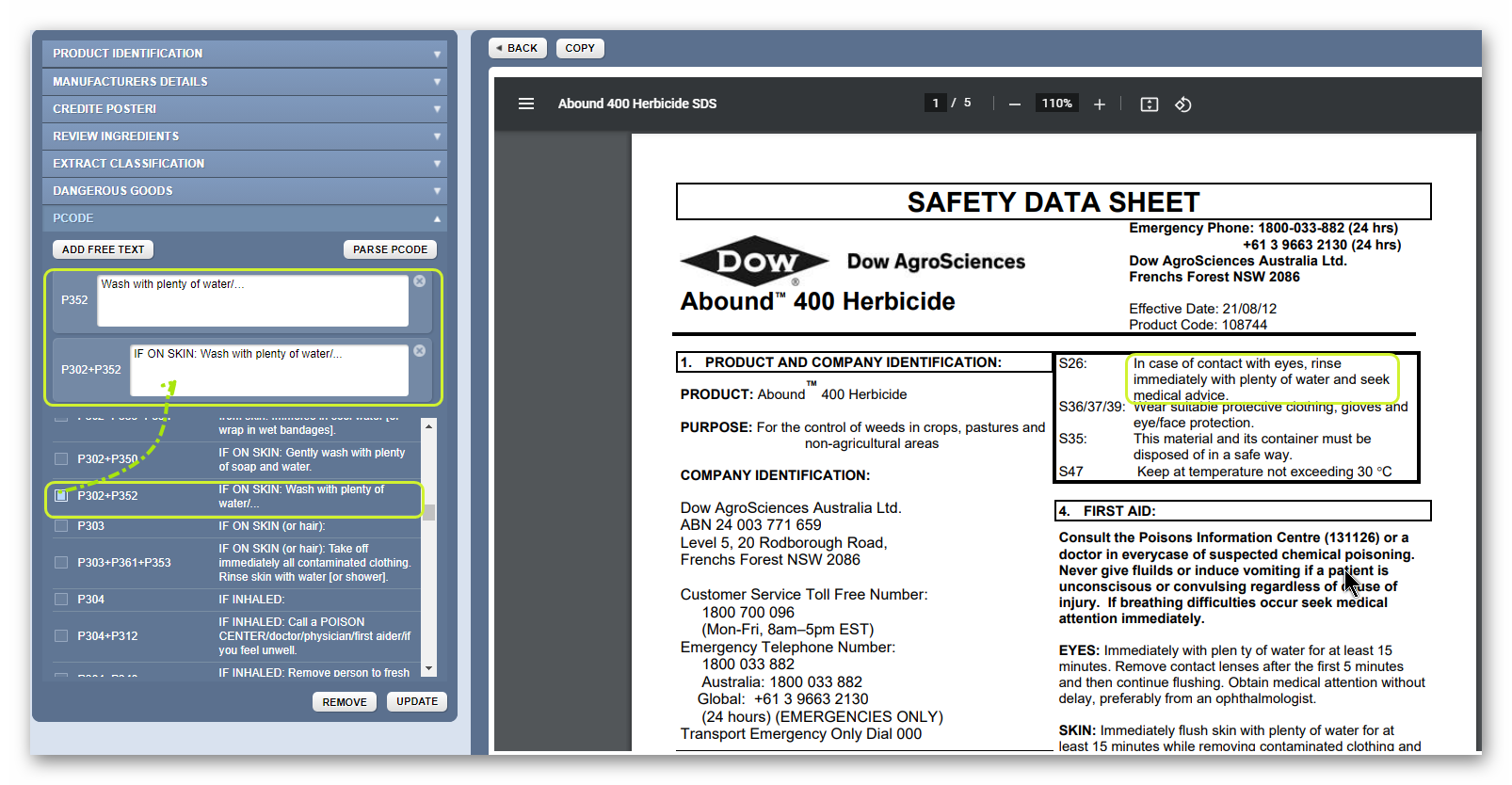
- Press the Submit button to save data and generate the data extraction.
- Confirmation message displays – material is saved successfully.

24. Click the Back button to go back to the list. Note that the record shows a “UGD and RA icons in the name column of the document list depicting that “User Defined Gold Data” for the Risk Assessment was extracted successfully.

25. Click the Back button again to view the material hazard icon assigned to it in the Manifest grid.
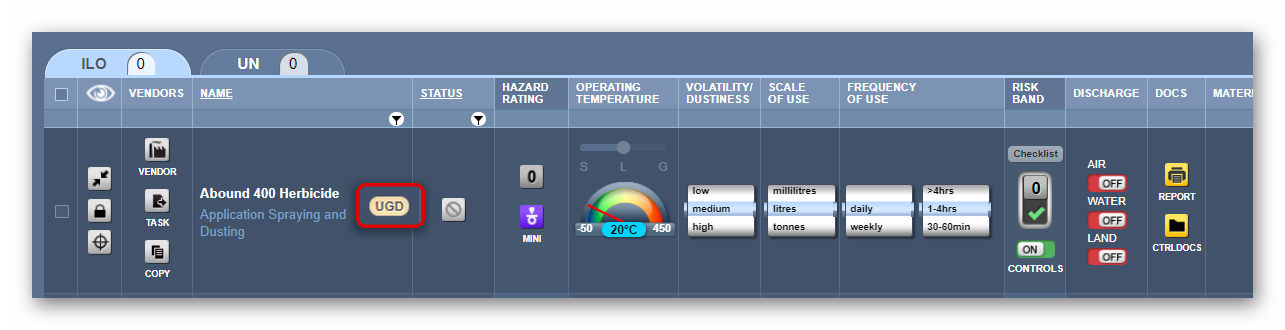
 Note that the record shows a “UGD” icon
  in the “Material/Cat Name” column to depict that the “User defined gold data” was extracted successfully. The next steps will be to perform a risk assessment for the material using the UGD classification data.
Was this article helpful?
That’s Great!
Thank you for your feedback
Sorry! We couldn't be helpful
Thank you for your feedback
Feedback sent
We appreciate your effort and will try to fix the article