Steps: Batch print Vendor SDS by Products Updated
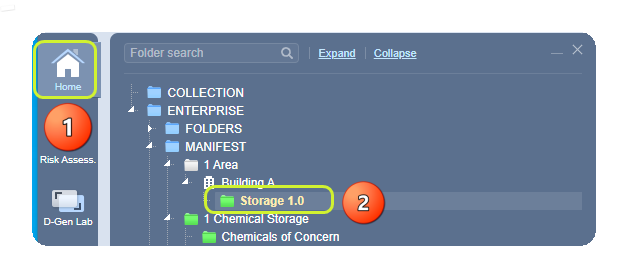
- Select the Home module button
 .
. - Select Folder name
 .
.
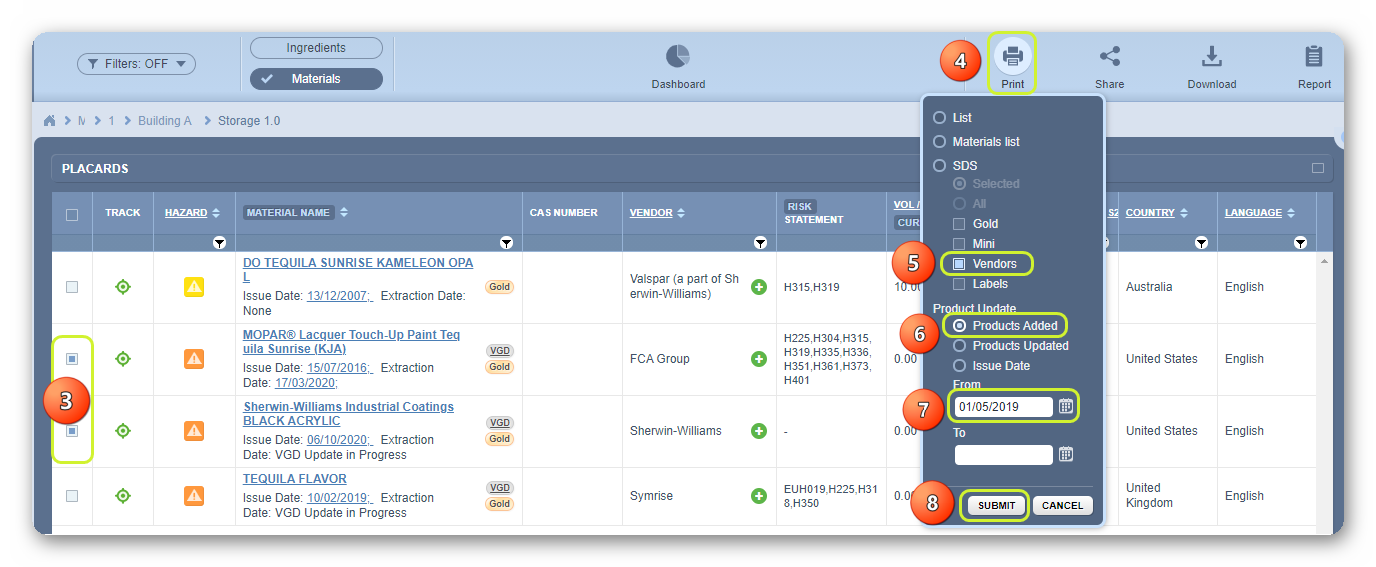
3. Select checkboxes  for each row in the materials list or click on the checkbox header to mark all materials.
4. Click on Print button to open print menu options.
5. Click on Vendors checkbox under the SDS radio button options.
6. Click on Products Added radio button or Products Updated or Issue Date.
If “All” option is selected from the print menu, this option will generate reports for all materials in the list based on the current set pagination (or default); 25, 50, 100, 500 materials per page. The default pagination is always set to 25.
In this exercise, the Product Update batch file will be generated based on any available products added into your inventory and at least assign the “Form” date to pick a date range by selecting calendar dates. If you miss the “Form” date. A warning message will be displayed. 
7. Select the “From” date and set a date from the calendar field.

8. Click the Submit button to generate the file.
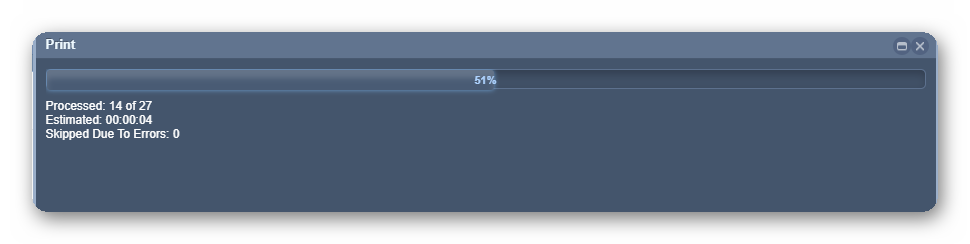
The print panel displays a process bar and estimated time frame to generate the batch links if there are multiple documents to process.
9. Select the Print icon from the pdf reader to print all the generated documents.
10. Select each batched processed data range per batch by clicking the link to open the file.

11. Print the Vendor SDS from the pdf reader print icon.
icon.

12. Click the Close button to go back to the list.
Was this article helpful?
That’s Great!
Thank you for your feedback
Sorry! We couldn't be helpful
Thank you for your feedback
Feedback sent
We appreciate your effort and will try to fix the article