The steps below demonstrate “how to save multiple Vendor SDS” as a single batch file in pdf format. This will help collate all Vendor SDS for selected materials to keep an archive file for reference.
Steps to Save Vendor SDS into a single batch PDF file
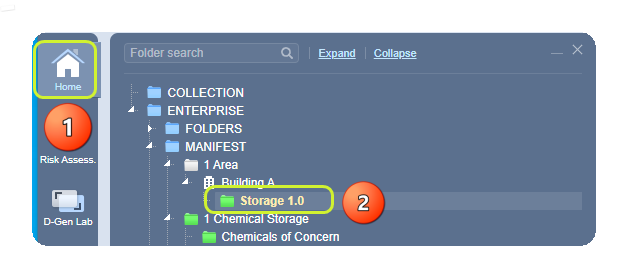
- Select the Home module
 .
. - Select the Folder name
 that contains materials.
3. Select checkboxes  for each row in the materials list or click on the checkbox header to mark all materials.
4. Click on the Download button to open print menu options.
5. Select the SDS radio button  from the print menu.
6. Click on the Selected radio button  or All for all materials in the list.
7. Select the Vendor checkbox under the SDS options.
8. Click the Submit button to generate the file.
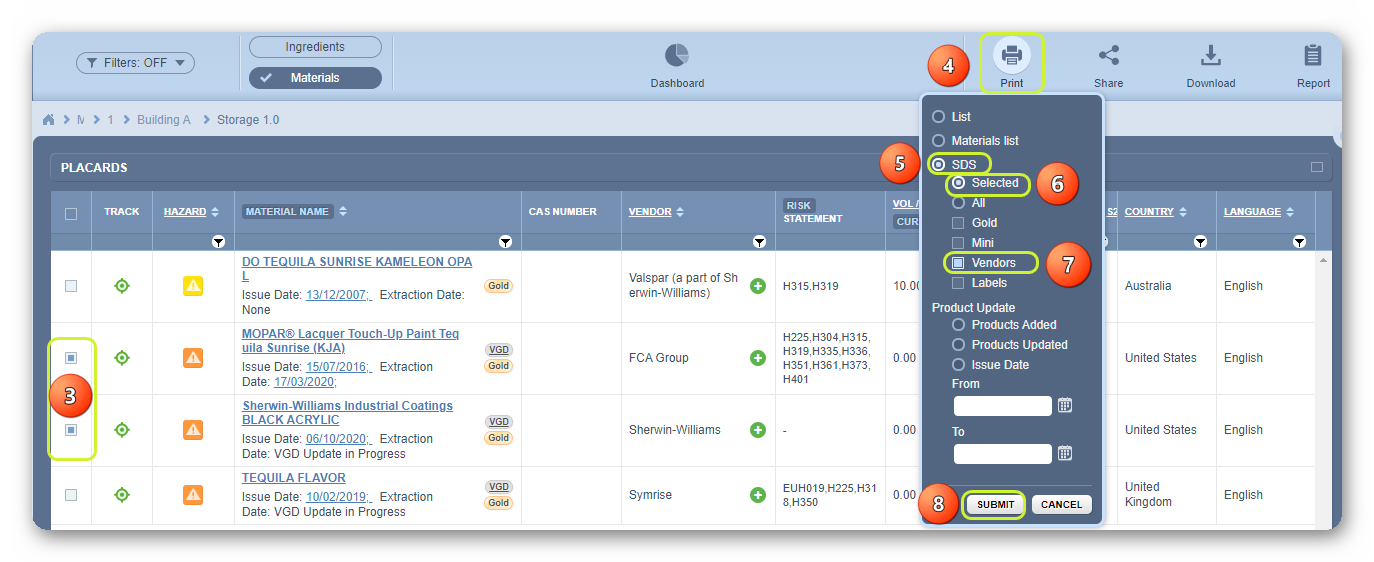
All selected material(s) Vendor SDS will be collated into a single pdf file.
9. The Save panel displays processed reports as a batch file. Select the Download button from the Acrobat reader.

Was this article helpful?
That’s Great!
Thank you for your feedback
Sorry! We couldn't be helpful
Thank you for your feedback
Feedback sent
We appreciate your effort and will try to fix the article