The steps below demonstrate “how to share multiple Vendor SDS” as a single batch file in pdf format.
Steps to Share (Email) Vendor SDS
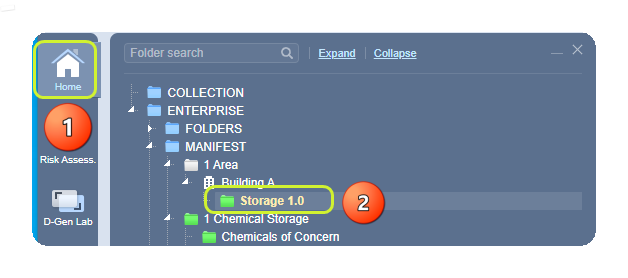
- Select the Home module
 .
. - Select the folder name
 that contains materials.
3. Select checkboxes  for each row in the materials list or click on the checkbox header to mark all materials.
4. Click on the Share button to open the email menu options.
5. Select the SDS radio button  from the Share menu.
6. Click on the Selected radio button  or All for all materials in the list.
7. Select the Vendor checkbox under the SDS options.
8. Click the Submit button to open the email window.

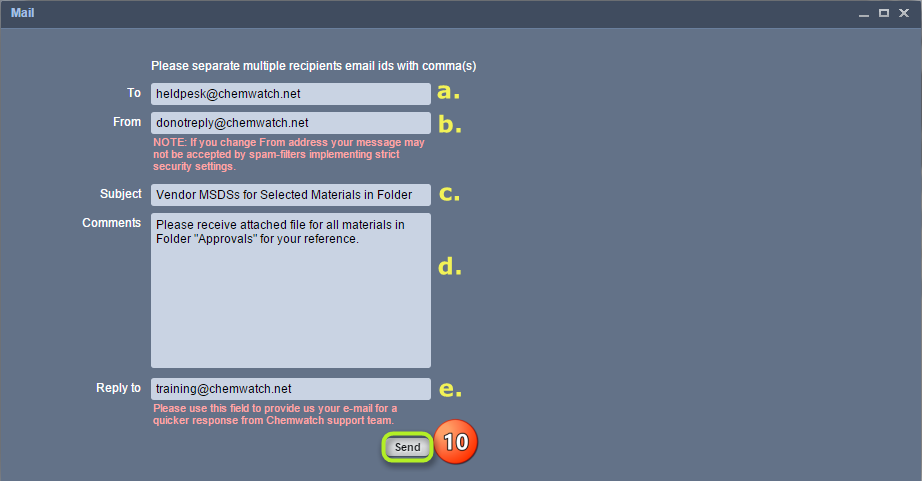
9. The email window displays emailing fields.
- Type the email address to send the report file To
- Do not change the default Form field. Note that if you change the “from” default ‘do not reply’ address may not be accepted by spam filters due to security settings
- Type the Subject for the email
- Type Comments in the Comments text field
- Type “your email address” in the Reply to” field. Note that this field will provide us with your email address for a quicker response from Chemwatch support.
10. Click the Send button to send the batch file.
The recipient will receive the SDS batch file as an attachment in the email.
Was this article helpful?
That’s Great!
Thank you for your feedback
Sorry! We couldn't be helpful
Thank you for your feedback
Feedback sent
We appreciate your effort and will try to fix the article