This article demonstrates the steps on “how to save Vendor SDSs by Offline Archive” as a single zip file. Note that this file will be downloaded in the designated folder as a zip file.
Steps to Downloading a Batch of Vendor SDS by Using the Offline Archive
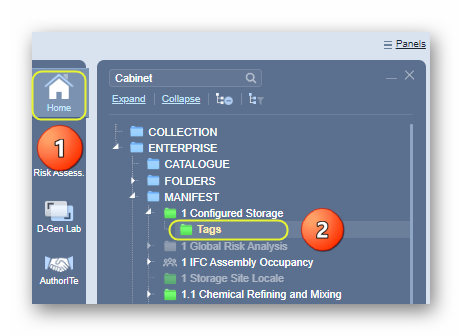
1. Select the Home module button 
2. Select folder name 
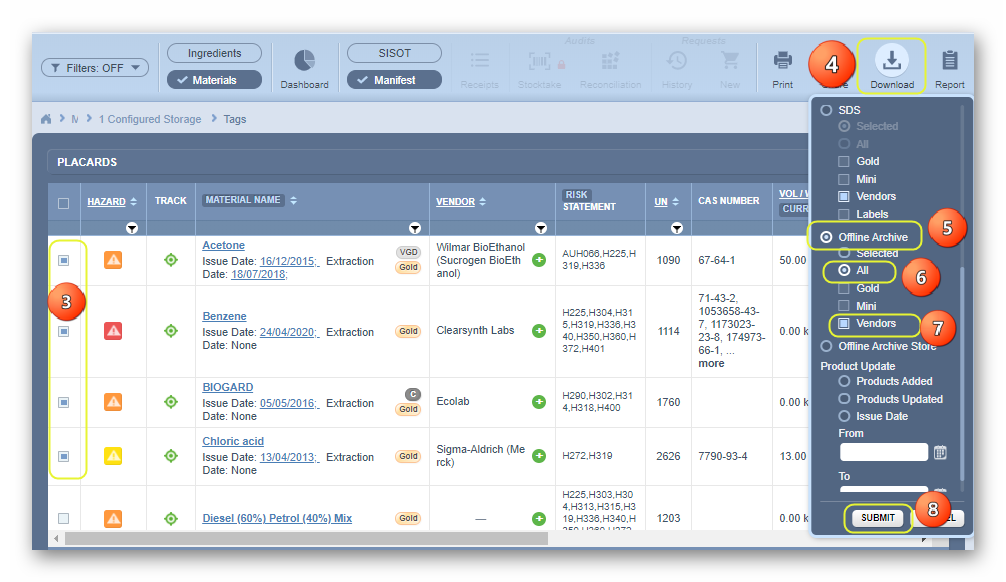
3. Select checkboxes  for each row in the materials list or click on the checkbox header to mark all materials in the displayed list
4. Click on the Download (Save) button to open the save menu options
5. Click on the Offline Archive radio button
6. Click on the Selected radio button or All for all materials in the list
7. Select the Vendors checkbox or Mini or Gold
If “All” option is selected from the share menu, this option will enable all SDSs to be generated for all materials in the list based on the current set pagination (or default); 25, 50, 100, 500 materials per page. The default is set to 25 materials per page.
8. Click the Submit button to download a batch of Vendor SDSs by Offline Archive.
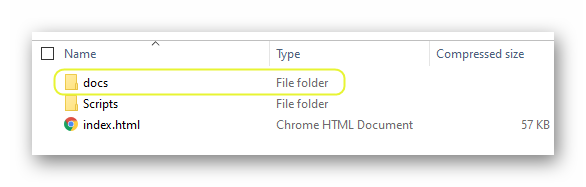
9. Click the downloaded zipped file folder “Materials_OfflineAr….zip” to save it to a designated folder in your desktop

10. Extract the entire file to open the list of Vendor SDSs. Open “Docs” folder
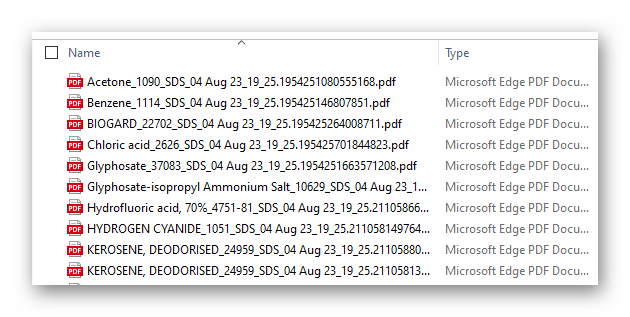
11. A List of extracted materials Vendor SDSs is shown in the archive folder.
Was this article helpful?
That’s Great!
Thank you for your feedback
Sorry! We couldn't be helpful
Thank you for your feedback
Feedback sent
We appreciate your effort and will try to fix the article